

Streaming Protocols
Section titled “Streaming Protocols”Music Assistant supports a wide variety of playback protocols. Many devices support more than one protocol. Music Assistant combines all of the different protocols that it discovers into one player. Each player has a default protocol which is selectable in the settings that will always be used when playback is intitiated to the individual player. However, when grouping players, Music Assistant will identify the most ideal protocol to use for grouping and playback, and will switch to that protocol without needing user intervention. In some cases there might be an interruption to playback if the stream must be restarted.
Online Metadata Sources
Section titled “Online Metadata Sources”Music Assistant relies heavily on metadata to work well and it gets this information from locally tagged files and online sources. The free online resources have limits and MA is often hitting those limits so further restrictions have been put in place. This means that:
- Online resources will be queried very slowly in the background
- Users with local files that are badly tagged or without images in the music folders will see a significant delay until artist thumbs appear
- If a track has no album artist tag, there will no attempt to retrieve it from a metadata provider
- Various artists will be the default option if the album artist tag is missing in local files
Music Assistant never modifies the tags in the local files. Online metadata retrieval occurs when local data is lacking. MusicBrainz is only used for streaming sources (so not for local files) OR when the Musicbrainz IDs are missing in local files and audiodb and/or fanarttv are enabled. At this time MusicBrainz is only used to get the Musicbrainz id’s, not for metadata itself.
For users with local files with local artwork and also streaming sources, preferably add the local source first and allow the sync to complete and all artwork to appear before adding the streaming sources. Not doing so can result in the streaming source artwork to be preferred although this can be fixed by using the images section in the artist view.
It is possible to speed the metadata retrieval for an individual item (including lyrics when a track is selected) by using the UPDATE METADATA option in the ⋮ menu in the top right corner of the individual artist, album, or track view.
The Library
Section titled “The Library”The Music Assistant Library is a database containing details of the music which the user has indicated they are interested in listening to on a regular basis. It consists of information about Artists, Albums, Tracks, Playlists, Audiobooks, Podcasts and Radio Stations which allows easy searching, display and cross referencing across the User Interface.
For local music sources all artists/albums/tracks/playlists are imported* into the MA library when the source is added and at each sync.
For streaming sources ONLY the SPECIFIC artists/albums/tracks/playlists that are in the streaming sources library (or favourites or however it is termed in the source) will be imported* into the MA library when the source is added and at each sync. This means, for example, if there is an artist in the sources library but none of their albums then all that will be seen in the MA library is the artist with NO associated albums or tracks. You have to subsequently add albums or tracks to the MA library if it is desired to see them in the library views. Note it is possible to toggle the library / streaming source filter option to see all that is available in the streaming source.
In each view there is a ⋮ menu in the top right corner. This menu has various library related functions. Two important ones are UPDATE METADATA amd REFRESH ITEM. Update metadata only retrieves additional metadata for the item being viewed and doesn’t alter any of the existing/base details, while refresh item completely re-adds the item into the database, overwriting all existing data. To update the images section or lyrics it is only necessary to select UPDATE METADATA.
* imported means metadata is added to the database. No files are moved or downloaded
NOTE
If identical items (e.g. an album or track) have not been matched across sources or within a source then navigate to the Provider Details section of the item and use the options there to link them.
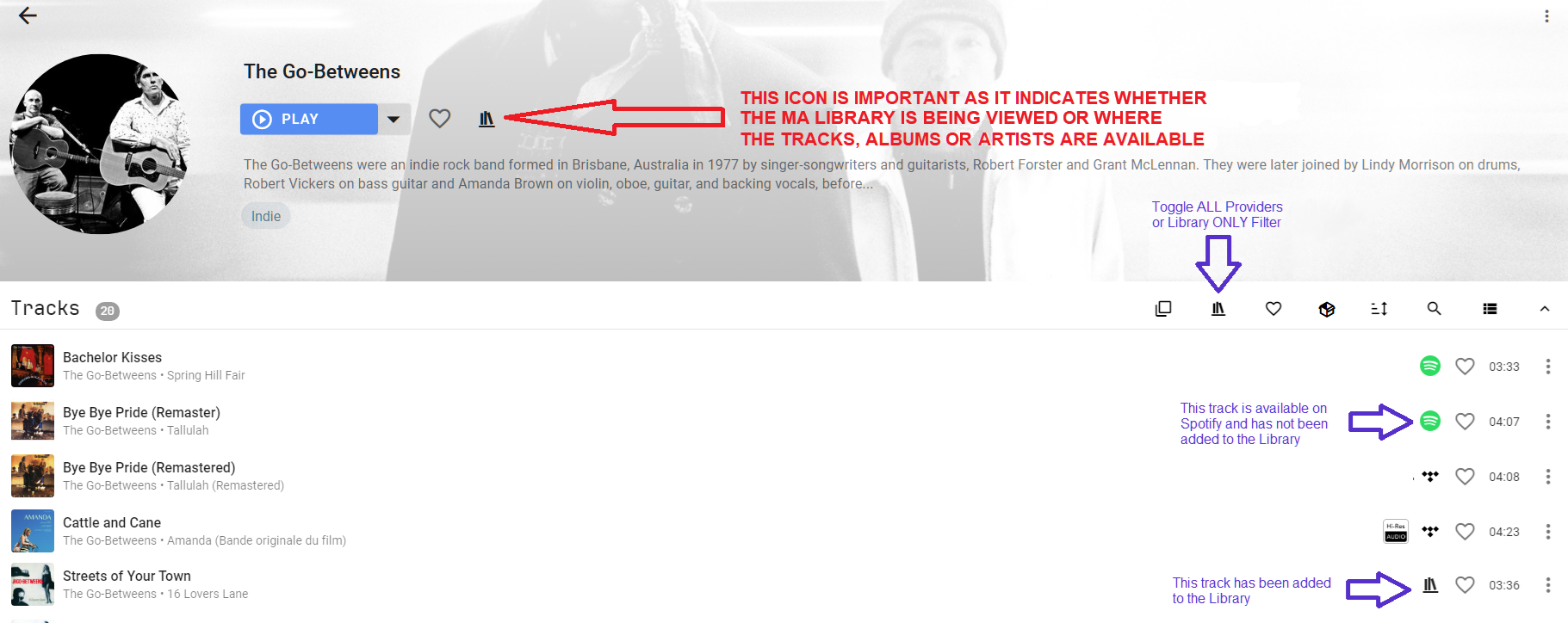
Favourites
As a further means of filtering the library, items can be marked as a “favourite”. This is shown in the UI as a filled heart icon. Whether items are favourited by default when imported from the music source is determined by the source settings. All items can be seen if the heart icon is deselected in the top menu.
The Queue
Section titled “The Queue”Each player has its own queue. Viewing the queue is done by pressing the :material-playlist-play: button. This button can be found on the player bar at the bottom of the UI or for narrow displays in the NOW PLAYING view.
Selecting the PLAYED ITEMS option will show the previous items from the queue and selecting any will show a menu and this will allow a restart of the queue from that point.
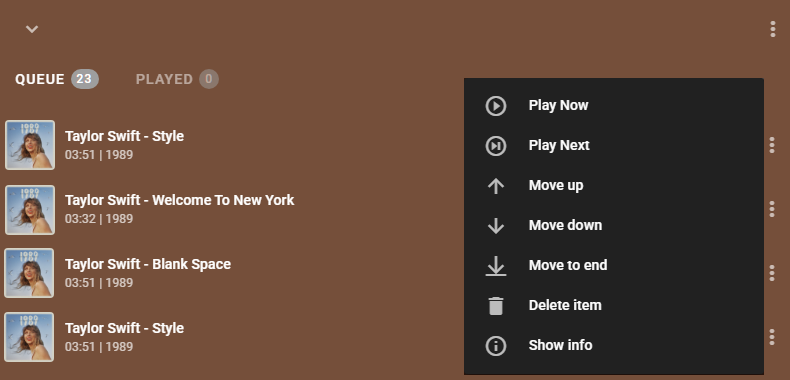
A menu of options to control the queue is available for each upcoming track and is shown in the image above.
NOTE
What happens to the queue when the different types of items (e.g. album, artist, playlist etc) are added to it is configurable in MA SETTINGS>> SYSTEM>> PLAYER QUEUES
The options in the menu available in the top right is shown below. Repeat and Shuffle also have buttons at the bottom in the player bar (or in the NOW PLAYING view for narrow mobile devices).
Transferring the queue will also transfer the shuffle and repeat setting to the new player.
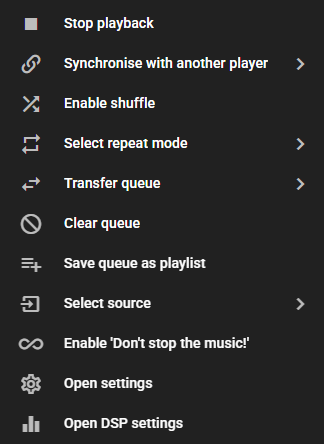
The Don’t Stop The Music (DSTM) option can be enabled if a source is available which supports dynamic tracks (i.e. Apple, Deezer, Spotify, Subsonic, Tidal and YTM). When DSTM is on, radio mode will be automatically enabled when the last track of the queue is reached and if any dynamic tracks can be resolved from one of the sources. The added tracks will be based on the played items in the queue.
NOTE
If a queue is paused for more than 30 seconds it’s status will change to stopped
CAUTION
Adding thousands of tracks to the queue may cause MA to become unresponsive depending on the resources of the host hardware. It is recommended to keep the queue to one thousand tracks or less.
Radio Mode
Section titled “Radio Mode”Starting from a Track or Album:
Section titled “Starting from a Track or Album:”Radio Mode retrieves similar tracks using the track’s provider mappings (which is shown in the Provider Details section in the UI). When radio mode is started from a track in the library, Music Assistant checks each of the track’s provider mappings in order and uses the first source that supports the similar tracks feature (Apple Music, Deezer, Spotify, Subsonic, Tidal, or YouTube Music). For example, if a track exists on both Spotify and Tidal, and Spotify is listed first in the provider mappings, Spotify’s similar tracks algorithm will be used exclusively. When starting from an album, Music Assistant first selects base tracks from that album, then applies the same provider selection logic for each track. If radio ode is started with a track or album that’s not in the library (i.e., directly from a music source), that source’s similar tracks implementation is used.
Starting from an Artist:
Section titled “Starting from an Artist:”Radio Mode works differently when starting from an artist. For an artist in the library with multiple provider mappings, Music Assistant fetches the top tracks from all sources where that artist exists, combines them into a single pool, then randomly samples five tracks as the base. Each sampled track then queries its own source for similar tracks. This means radio mode started from an artist typically produces a diverse mix of results from multiple sources, as each base track contributes similar tracks from its respective source (e.g., some from Spotify, some from Tidal, some from Apple Music). For artists not in the library, only that source’s top tracks are used as the base.
Playlists
Section titled “Playlists”Playlists must be stored on a source. A music source’s playlist can only contain tracks from that source. However, MA has a built-in provider with the ability to create playlists that have tracks from multiple music sources. In this case the playlist will be stored solely within the MA database. These options are automatically presented in the Add to Playlist dialog.
Playlists can be created or added to from various menus in the different views. They can also be created in the Playlist view by clicking on the icon in the top right.
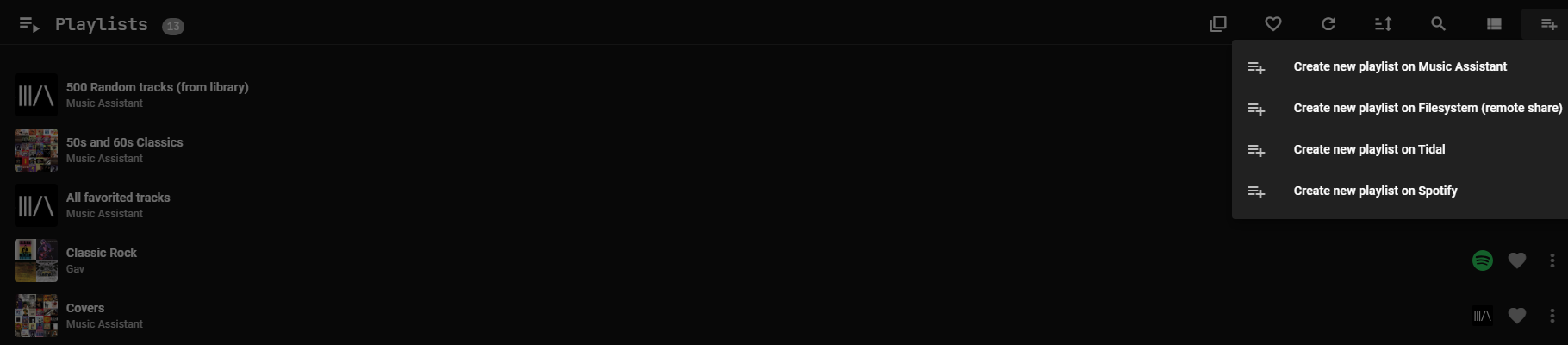
Playlists which consist solely of tracks from the filesystem source can be stored on the local filesystem if MA has write access. Music Assistant playlists are stored as files within the container.
User created playlists from streaming sources will be imported into the MA database and will remain synchronised regardless of whether changes are made from the MA UI or from the streaming source’s native application (assuming the streaming source has the functionality for two way sync). Refer to the individual Music Source pages for any limitations.
Playlists can be copied from one source to another by opening the original playlist and selecting all of the tracks and then in the ACTIONS menu select Add to Playlist.
Automatically generated playlists from streaming sources may be supported. See the specific source documentation for further information.
MA automatically generates some dynamic playlists. These playlists will be updated at the sync interval set for the Refresh playlist metadata task in MA SETTINGS>> SYSTEM>> BACKGROUND TASKS or they can be updated manually by navigating to the playlist and then pressing on the refresh icon  or by going to the ⋮ menu in the top right and selecting REFRESH ITEM.
There are also two pseudo-playlists - Infinite Mix. Viewing these playlists will show no tracks however playing the playlist will result in an endless queue where 25 random tracks (from the whole library or the favourites) will be added to the queue and will be refreshed as the queue comes to an end.
Importing and Exporting
Section titled “Importing and Exporting”Music Assistant can export in-library playlists to M3U8 files and import them back, preserving far more detail than the standard M3U format allows. Use it to back up playlists, move them between MA instances, or migrate from one streaming provider to another.
Exports stay compatible with normal M3U players (VLC, Kodi, etc.), but MA adds extended tags that carry full metadata — ISRC, MusicBrainz ID, artist/album info, provider mappings, and artwork. Other players ignore these; MA uses them to rebuild the playlist faithfully on import.
Exporting a playlist
Open the playlist to be exported, click the ⋮ menu in the header, and choose Export playlist. MA downloads a .m3u8 file named after the playlist.
Only playlists that live in the Music Assistant library can be exported — provider-owned playlists (e.g. ones that appear in Spotify or Tidal searches) don’t show the option.
Importing a playlist
On the Playlists page, there is an option in the toolbar menu to Import playlist, selec it and then pick a .m3u or .m3u8 file. MA creates a new library playlist from it.
In the import dialog, a Search for tracks on list will be seen with a checkbox for each installed music provider. These are the providers MA will search when a track in the file can’t be played directly (for example, the file references a Spotify track but Spotify is no longer installed, or a M3U is being iported that someone else exported).
MA searches for the best available version on those providers, preferring exact matches on ISRC or MusicBrainz ID and falling back to title/artist/duration when those IDs aren’t present. A “Playlist created” notification will be seen as soon as the import finishes, with an Open playlist shortcut. If MA can’t find a confident match for a track, the original reference is kept in the playlist so it can be seen what the original item was and this should be able to be fixed by hand.
Getting the best results
- Export from MA whenever possible. MA’s exports carry ISRC and MusicBrainz IDs, which produce near-perfect matches on import. Third-party M3U files only have title/artist/duration, so matching is fuzzier.
- Install the providers to be matched from before importing. MA only searches providers that are currently available. If migrating from Spotify to Tidal, install Tidal first.
- Use the provider checkboxes to scope matching. Leaving everything checked gives MA the widest net; narrow it matches are desired to come specifically from one or two services.