

MA System Settings 
Section titled “MA System Settings ”The core server settings are set with typical defaults that should work for most users. However, there are settings available for each of the core controllers and these are outlined below. All controllers have a setting for the log level in the advanced section. There may be slight differences in the settings between the HA add-on and docker versions of the servers.
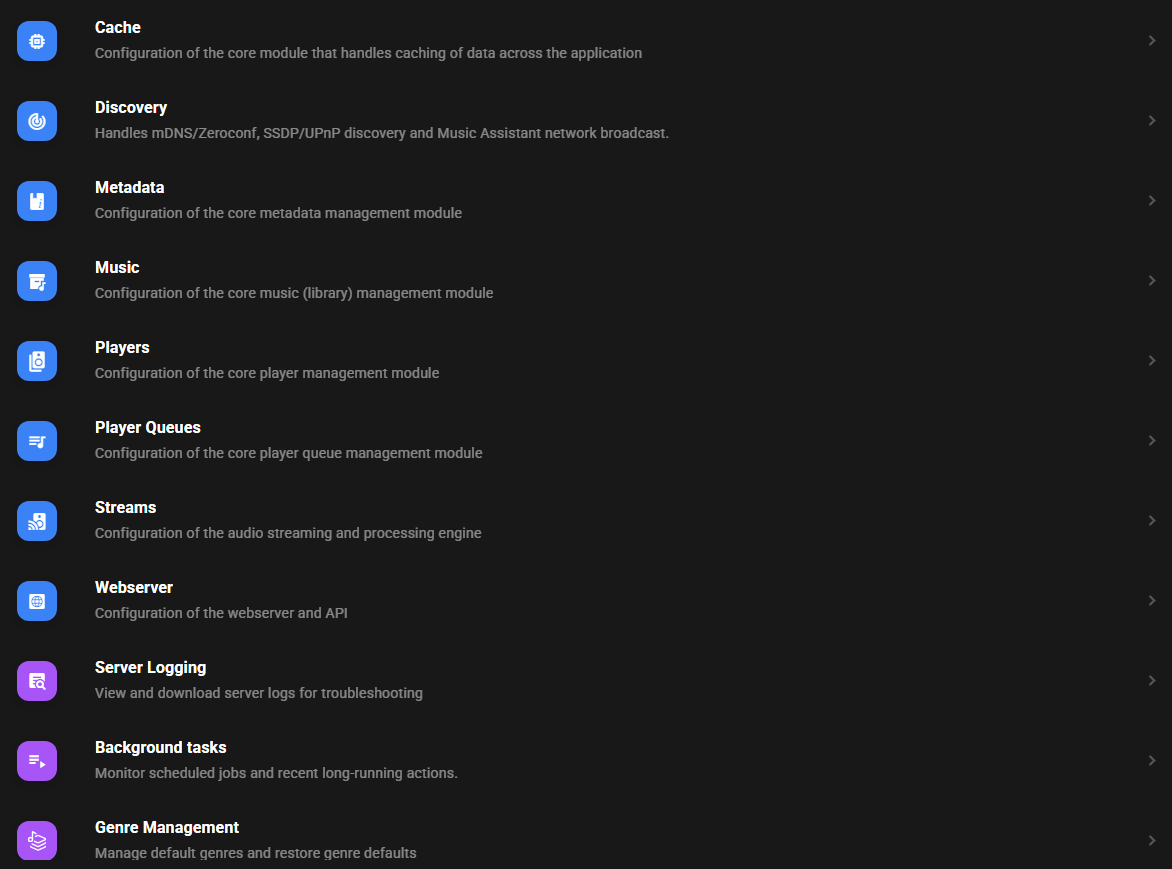
- A button is available to clear the cache used my Music Assistant. Do not routinely use this button as it increases API usage and slows down the MA experience
Metadata
Section titled “Metadata”- Language. Preferred language for metadata. If the selected language is unavailable then English will be used
- Enable metadata retrieval from online metadata providers. Enables the lookup of information that is not available locally. MA does not modify any existing metadata but supplements it
- Enable artist/track artwork lookup for radio streams. By default this is enabled and allows artwork to be displayed for radio stations that don’t supply it natively. Requires the station to supply appropriate
Artist - Trackmetadata
- Advanced - Reset Library Database. Selecting this button will erase the MA database. This is a destructive irreversible action! This should only be used if database corruption is confirmed. All library items including playlists stored in the database will be lost and will need to be recreated. A rescan of the music sources will rebuild the database with the information contained on those providers. Do not use this routinely. For problems with individual items use the REMOVE FROM LIBRARY menu option
Players
Section titled “Players”- Advanced - MDNS/Zeroconf discovery interface(s). For advanced users the default is
Default Interfaceand the other option isAll interfaces
Player Queues
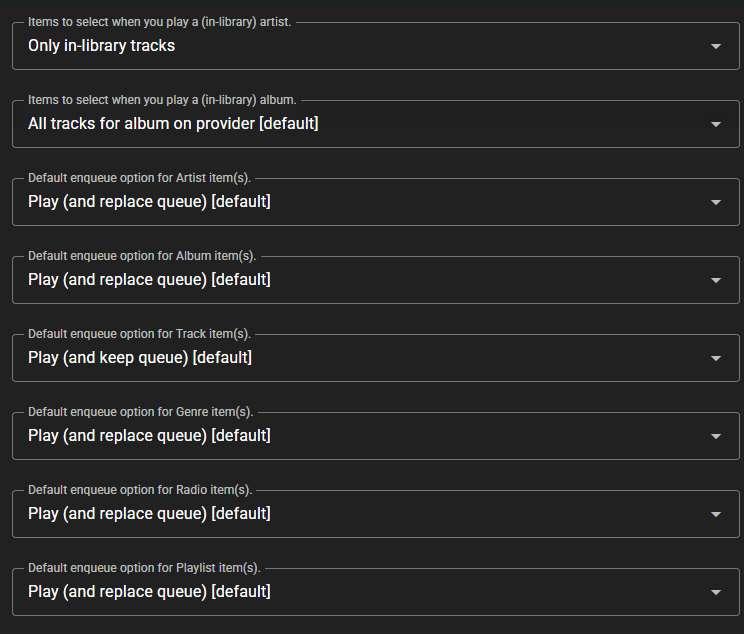
Section titled “Player Queues”The behaviour when playing or enqueuing items is determined by the settings in this section.
Streams
Section titled “Streams”All settings in this section should be considered advanced and will not need to be adjusted in the majority of cases. Users with complicated network setups will find settings in this section that will be useful. If MA appears to be setup correctly but no playback occurs then check the settings in this section.
Streamserver Audio Settings
Section titled “Streamserver Audio Settings”Allow (in-memory) buffering of (track) audio. By default, Music Assistant tries to be as resource efficient as possible when streaming audio, especially considering low-end devices such as Raspberry Pis. This means that audio buffering is disabled by default to reduce memory usage. Enabling this option allows for in-memory buffering of audio, which (massively) improves playback (and seeking) performance but it comes at the cost of increased memory usage. If you run Music Assistant on a capable device with enough memory, enabling this option is strongly recommended.
This section contains settings which affect the Volume Normalization functionality of MA. This functionality is enabled by default and settings are also available on an individual player basis. Extensive online help for these settings is available by selecting the  icon in the settings UI for each option.

- Allow crossfade between tracks from the same album. Not enabled by default as it may not be desirable particularly for live albums
Streamserver Advanced Settings
Section titled “Streamserver Advanced Settings”- The Published IP address and TCP Port are normally populated automatically. If there are issues with playback then confirm the IP address shown is reachable by the players on the local network. The port must be available
- Bind to IP/interface. Use in complex network setups to start the streamserver on a specific interface
- SmartFades Log Level. Specific log level for the Smart Fades mixer and analyzer
Webserver
Section titled “Webserver”- Allow User Self-Registration. Allows users to create accounts via Home Assistant OAuth
- Base URL. The (base) URL to reach this webserver on the network. Override this in advanced scenarios where, for example, you are running the webserver behind a reverse proxy
- TCP Port. The port that the webserver is to be run on. If this setting is changed then ensure the base URL port is changed as well
- Enable SSL/TLS. When enabled two additional fields are revealed which is where the
SSL CertificateandSSL Private Keyare added (both must be in PEM format) - Advanced-Bind to IP/Interface. Start the webserver on this specific interface. For further information see the help for this setting in the MA UI
Server Logging
Section titled “Server Logging”This opens a view where the 150 line tail of the Music Assistant log can be seen or the full log can be downloaded.
Background Tasks
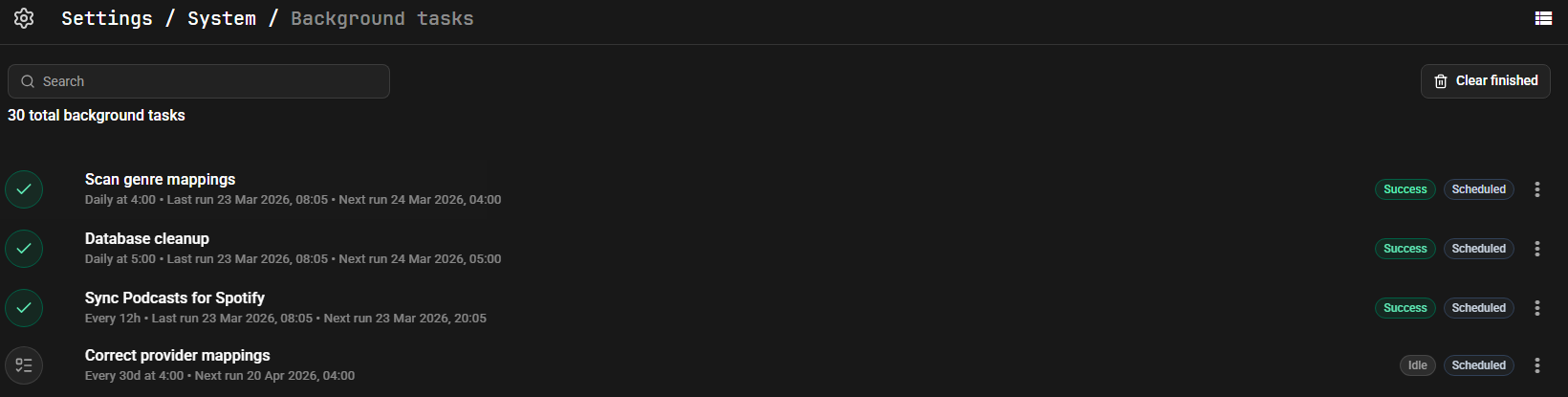
Section titled “Background Tasks”This opens a view where the completed and upcoming background tasks can be seen. Any failures will be clearly indicated and log snippets can be inspected. Detailed information is obtained by clicking on a task. There is a ⋮ menu on the right when allows for:
- Viewing the task details
- Editing the task schedule. Frequency can be Hourly, Daily or Weekly. A precise time can be specified for the task for Daily and Weekly frequencies
- Running of the task now
- Disabling the schedule
Administrators can see all tasks on the server whereas Users can only see tasks created by them (e.g. playlist creation).
Genre Management
Section titled “Genre Management”Administrators can access the Genre Management page from the settings menu. This page provides tools for maintaining the genre database.
Background Scanner
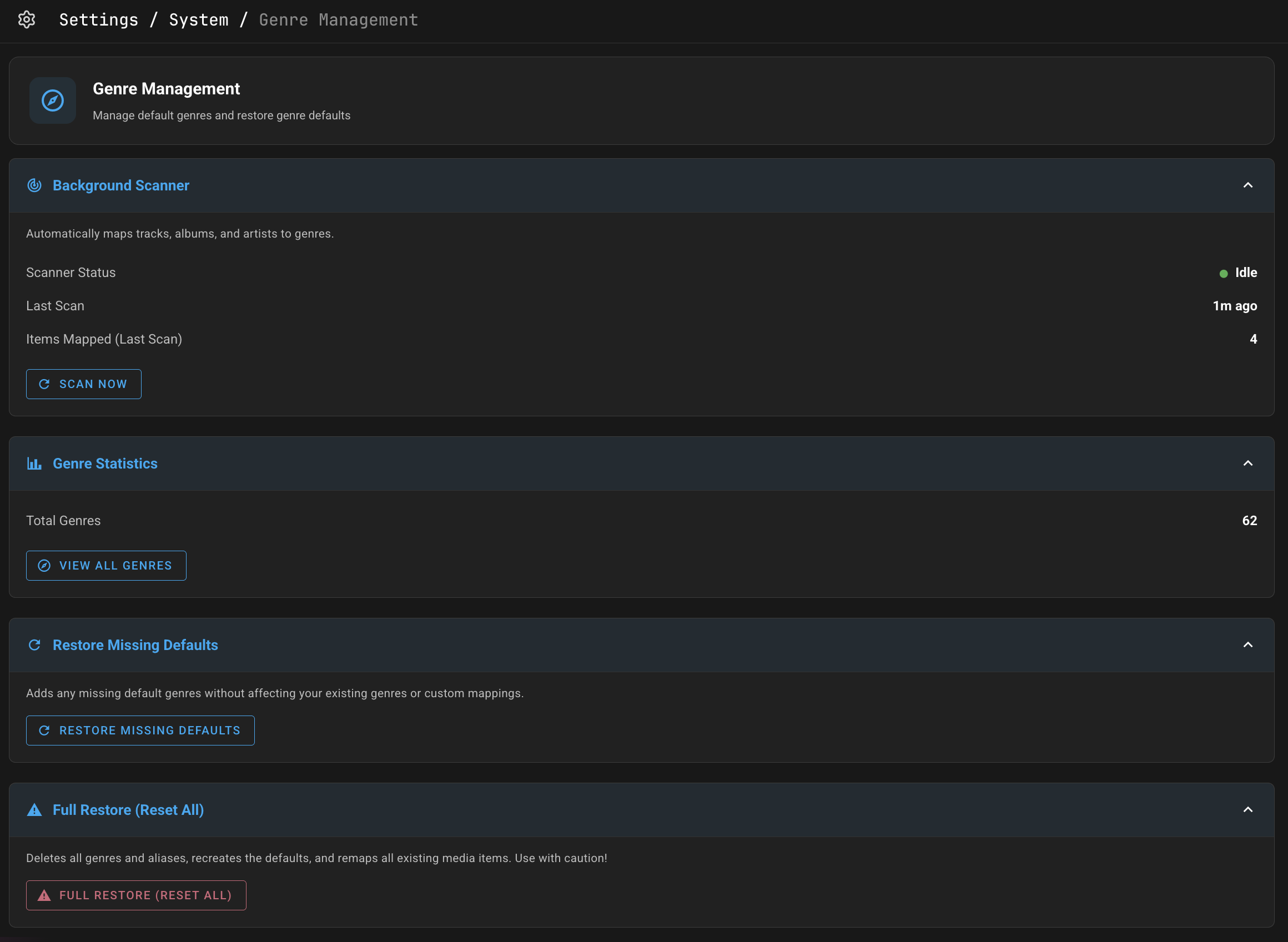
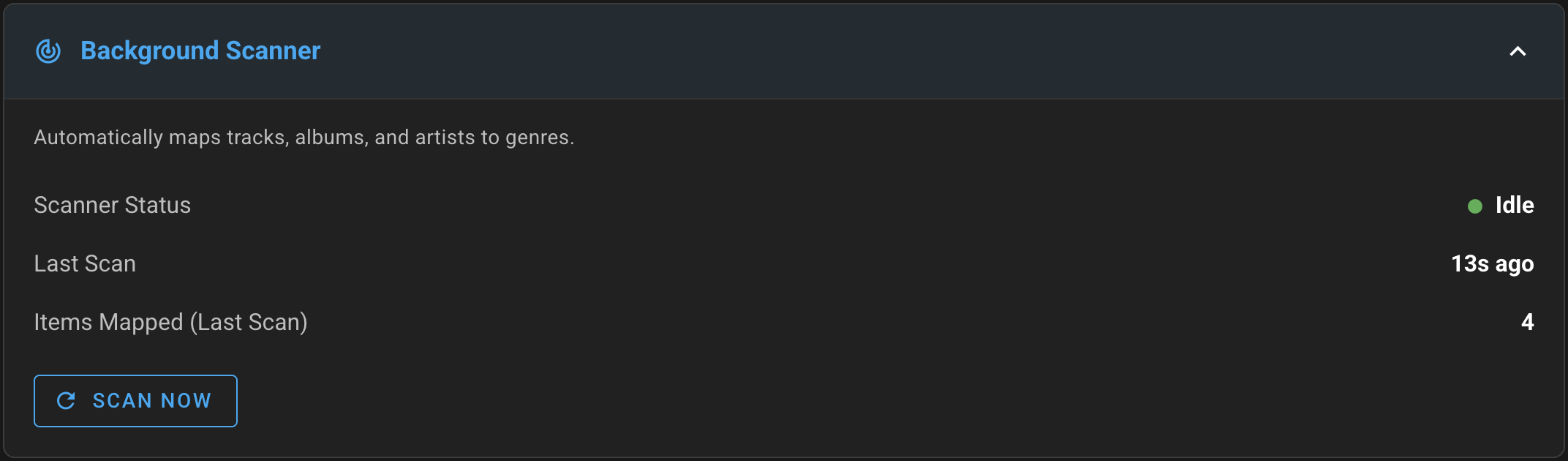
Section titled “Background Scanner”The genre scanner automatically maps media items to genres based on metadata from your music sources. The scanner panel shows:
- Scanner status — Whether the scanner is currently running or idle
- Last scan time — When the last scan completed
- Items mapped — How many items were mapped during the last scan
- Scan Now button — Manually trigger a scan
The scanner status is polled automatically every 30 seconds.
Genre Statistics
Section titled “Genre Statistics”Displays the total number of genres in your library, with a link to view all genres.
Restore Missing Defaults
Section titled “Restore Missing Defaults”Checks for any built-in default genres that are missing from your library and restores them. This does not affect any existing genres or their mappings.
Full Restore
Section titled “Full Restore”A destructive operation that completely rebuilds the genre database from defaults. This removes all custom genres and restores the full set of built-in genres.
CAUTION: Full restore deletes all custom genres, aliases, and media mappings. This action requires a two-step confirmation to prevent accidental data loss.