

Filesystem Sources 
Section titled “Filesystem Sources ”Music Assistant has full support for reading local music files on disk or a remote server and will catalog it into the library, allowing playback to all player providers supported by Music Assistant. Network support is limited to SMB/CIFS, NFS and WebDAV.
When streaming sources are also availabe in MA linking will only occur when the same item is found in the “Library” of that streaming source. However, additional tracks and albums will be seen in various views or via the global search which can then be added separately to the MA Library.
Features
Section titled “Features”| Subscription FREE | Yes |
| Self-Hosted Local Media | Yes |
| Media Types Supported | Artists, Albums, Tracks, Playlists, Audiobooks, Podcasts |
| Recommendations Supported | No |
| Lyrics Supported | Yes |
| Radio Mode | No |
| Maximum Stream Quality | Lossless FLAC 192 kHz, 24 bit |
| Login Method | Password or None |
- Searching for tracks is possible
- Local music is automatically included in the MA Library
- Files are not favourited by default. All items can be seen if the “favourite” filter (the heart) is deselected. Items can then be favourited as desired
- If streaming sources are also connected, then the media will be automatically linked and completed with info from those streaming source(s)
- On playback, when tracks are linked across sources (or within the same source) the highest quality version is used automatically
- It is possible to add multiple filesystem sources
Configuration
Section titled “Configuration”Separate sources must be added for Music, Audiobooks and Podcasts.
Audio files are on a disk/folder of the device running the Music Assistant Server
If the files are stored on the device running Music Assistant, for example the /media folder in Home Assistant OS, the Filesystem (local disk) source should be selected and then the path to the files provided.
NOTE
For Home Assistant OS only the /media folder can be accessed. Docker users can mount their own folder paths. It is not possible to mount a folder from Home Assistant into the /media path.
Audio files are on a remote share served via SMB/CIFS
Music Assistant has support for SMB (also known as samba or CIFS) shares and DFS. Select the music source “Filesystem (remote share)” and configure the (fqdn) hostname (or alternatively the IP address) to the server, the name of the share and optionally any subfolder. Advanced options are:
- SMB Version. The SMB protocol version to use. SMB 3.0 or higher is recommended for better performance and security. Use Auto to let the system negotiate. The options are
Auto,SMB 1.0,SMB 2.0,SMB 2.1,SMB 3.0 [default], andSMB 3.1.1 - Cache Mode. Cache mode affects performance and consistency. ‘Loose’ provides better performance for read heavy workloads and is recommended for music libraries.. The options are
Strict,Loose (Recommended) [default], andNone
Audio files are on a remote share served via NFS
Music Assistant has support for NFS shares. Select the music source “Filesystem (NFS share)” and configure the IP address (without leading http://) of the server, the absolute export path of the share (e.g. /volume1/music) and optionally any subfolder.
Audio files are on a remote share served via WebDAV
Music Assistant has support for WebDAV shares. Select the music source “WebDAV” and configure the full URL of the WebDAV endpoint including the full path to the content folder (e.g. https://example.com/webdav/music). Provide username and password if authentication is required. SSL certificate verification is optional and disabled by default.
Settings
Section titled “Settings”In addition to the settings outlined above to configure this source there are additional settings available (note certain options will be greyed out depending upon the content type selected):
- Content type in media folder(s). This setting defines the content type of the source and is necessary for Music, Audiobooks and Podcasts to be correctly identified
- Action when a track is missing the Albumartist ID3 tag. In the first instance tag the files correctly. MA needs an album artist defined so that the item can be added correctly to the database. Instead of skipping tracks that do not have this information, this setting defines how the situation should be handled. By default,
Various Artistswill be used but the other options available areTrack ArtistandFolder name (if possible). - Ignore playlists with album tracks within album folders. Some users have a playlist per album. For large collections this results in an unusable Playlist View. To avoid this situation, this setting, which is enabled by default, will result in playlists which are more than one level below the root folder of the source to be ignored
- Sync Library Artists/Albums from this source to Music Assistant. Whether to synchronize all artists/albums from the local source.
- Import tracks/files into the Music Assistant library. Define if the import of tracks/files is desired. When not importing into the library, tracks can still be manually browsed using the Browse feature. Note that by adding a Track into the Music Assistant library, the track artists and album will always be imported as well
- Import playlists (m3u files) into the Music Assistant library. Define if the import of playlists (m3u files) is desired. When not importing into the library, they can still be manually browsed using the Browse feature.
- Import Podcasts/Audiobooks into the Music Assistant library. Define if the import of Podcasts/Audiobooks is desired. When not importing into the library, items can still be manually browsed using the Browse feature.
- Propagate track genres to albums and artists. Derive albums and artist genres from their tracks when album/artist have no genre metadata of their own
Known Issues / Notes
Section titled “Known Issues / Notes”- Write access to the share is required in order to edit or create playlists which are stored locally. Playlists can still be saved to the MA built-in provider if only read access is granted
- When using the remote share connection, be aware that use of SMB1 (which is very old) is not recommended. If the connection keeps failing, look at the NAS settings to see if SMB1 can be disabled
- Use the following naming convention for local artwork
- Artist thumb: folder.jpg or artist.jpg (or png)
- Album thumb: folder.jpg or cover.jpg (or png)
- Fan Art (used as background in banners): fanart.jpg (or png)
- Logo (used on Artist view): logo.png
- Artist thumb, Fanart and Logo should be in the folder with the artist name. Album thumbs should be in the folder with the album name or in the disc folders below that. More about artwork file types can be found here https://kodi.wiki/view/Artwork_types
- Embedded album thumbs will be extracted from audio files. However, performance can be improved and disk space saved by providing a single local artwork file vs. embedding the same artwork in all files
- WebDAV is HTTP-based so every file operation requires a network request. Library sync will be slower than local or SMB, particularly for large libraries or servers accessed over the internet
- Writing to the WebDAV server is not supported. Playlists can be read but not created or edited. Use the MA built-in provider for playlist management
TIP
Local Artwork is Optimal
Using embedded images on every track of the same album is suboptimal for both disk space and performance. Use a single folder.jpg in the album’s folder instead
- Artwork which needs to be downloaded will be done very slowly in the background. It is possible to force the download by selecting “Update Metadata” from the ⋮ menu in the banner at the top of a view
- A setting, enabled by default, allows the skipping of playlists which are more than one level below the root (normally this is the album folder). This is preferred as these playlists (normally all album tracks in the folder) serve no function in MA and clutter the Playlists view. Excessive numbers of playlists can have a negative impact on other parts of the MA experience
- In regard to folder and filenames note the following:
- Folders commencing with an underscore will be ignored
- Music Assistant requires all file and folder names to be valid UTF-8. Files with non-UTF-8 characters in their names will be skipped during library sync and a warning will be logged identifying the affected file. This most commonly affects files originally tagged or named on Windows using legacy encodings such as Windows-1252, where characters like curly quotes or accented letters may have been written as non-UTF-8 bytes
- Due to a kernel limitation, emoji and other special characters in folder or file names are not supported on SMB/CIFS network shares. Items with these characters will be skipped during library sync
- Local tracks and albums will be linked to the same tracks or albums on any source (local or streaming). Note that same is not simply same name. The tags are reviewed to ascertain whether it is indeed the exact same track. Without tag information MA will attempt to identify identical tracks based on the other information it has such as artist name, album, and track length. However, poor tag information may lead to poor matches
- Text files containing song lyrics are supported. These files must be named identically to the track filename and in the same folder but with a
.lrcfile extension. The lyrics will be loaded when playback commences - To minimise the chance of problems, music folders should follow the /artist/album structure and the folder names should match the artist and album names as tagged with any non-alphanumeric characters removed (e.g. AC/DC should be in a folder ACDC)
- Files placed into a random structure will be imported but no other data will be able to retrieved from the folder names and other problems may occur
Audiobooks
Section titled “Audiobooks”- Supported file formats are:
.aa,.aax,.m4b,.m4a,.mp3,.mp4,.flac,.ogg,.opus - Audiobooks in their own folder are always supported and is the preferred option. For untagged files this is mandatory, and filenames must sort alphabetically in chapter order
- A single file with embedded chapters (e.g.
.m4b) works in any folder - Multiple books can share a single folder if each file has an album tag (used as the book title to group chapters) and a track number tag. Multi-disc books also need a disc number tag. The title tag is used as the chapter name if present
- Author is read from the writer, album artist, or artist tag (in that order). Optional but recommended
- Cover art will be obtained from an embedded image, or an image file (
.jpg,.jpeg,.png,.gif) in the folder - A
.txtfile in the folder will be used as the book description
Podcasts
Section titled “Podcasts”- Supported file formats are:
.aa,.aax,.m4b,.m4a,.mp3,.mp4,.flac,.ogg,.opus - Podcasts must be placed in their own folder. Every file in the folder is an episode of that podcast
- Podcast name is obtained from the
albumtag of the episodes; if absent, the folder name is used - Episode name is obtained from the
titletag. Episode order is set by the track number tag - Embedded chapters within individual episode files are supported
- A
metadata.jsonfile in the folder can provide additional podcast-level metadata: title, sorttitle, description, publisher, genres, and image URL. - Cover art will be obtained from an embedded image, or an image file (
.jpg,.jpeg,.png,.gif) in the folder
Tagging Files
Section titled “Tagging Files”-
It is very important that all audio files contain correct, and ideally, extensive tag information. The more comprehensive the tagging the better the results will be when using MA. Note the following:
- Universal Tag Support: Music Assistant parses metadata from the industry-standard formats, including ID3 (v1/v2) for MP3s, Vorbis Comments for FLAC/Ogg/Opus, MP4 Atoms for M4A, and APEv2 tags
- Primary Source of Truth: Embedded tags are treated as the definitive source for artist, album, and track names. External metadata providers (like MusicBrainz or Fanart.tv) are only used to supplement missing info, such as high-resolution artwork or artist bios
- Cross-Platform Linking: MA uses advanced tags like MusicBrainz IDs (MBID) and ISRC codes to seamlessly link local files with matching tracks on streaming services like Spotify or Tidal
- Artwork Handling: It supports both embedded artwork within the file and local folder-based images (e.g., folder.jpg or artist.png)
- Recommended Tagger: For the best results in Music Assistant, it is strongly recommended to use MusicBrainz Picard to ensure the files contain the specific IDs needed for library linking. Other programs such as Mp3Tag are often also based on the Musicbrainz catalog and can work as well provided they include the tags shown in the Tags used by MA table
-
Fields with multiple values can be handled as follows:
- For ID3v2.3 and MP4 tags, multiple items should be separated by a semi-colon (this is the only tag splitter supported). In Picard this is an option in OPTIONS >> TAGS >> ID3.
- For Vorbis (FLAC, OGG), use multiple fields per the Vorbis spec
- For ID3v2.4 and APEv2 tags, multiple artists and album artists can be separated by the null character
-
MA requires the Album Artist tag to be set. If that tag is not set then what happens to those tracks when the provider is scanned depends on the
Action when a track is missing the Albumartist ID3 tagsetting for the local provider -
Music Assistant puts you in control by fully trusting the tags you provide, only additional information is scraped from metadata providers.
-
Music Assistant has support for both embedded artwork and artwork stored in a common folder structure of Artist \ Album and
.nfofiles with enhanced metadata are also supported -
For multi disc albums it is recommended (but not required) to add folders named “Disc 1”, “Disc 2”, etc beneath a folder with the album name. Artwork for the album can be added to the top level album folder or in the disc folders
-
If there is nothing added to the disc tag then the disc number will not be shown in the display
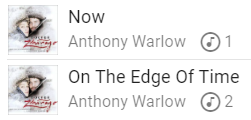
- To minimise the chance of problems with MA the Kodi guidelines should be followed. Just about all the tips, tricks and suggestions on that page are applicable to MA and if it is followed to the letter the UX will be much better
NOTE
As the semi-colon is the standard delimiter for multi-value tags, an artist with the semi-colon in their name requires special handling. One of the following options must be used:
- Vorbis (FLAC, OGG): Multiple (more than 1) ARTIST fields (one per artist)
- ID3v2.4 (MP3): Multiple (more than 1) null-separated values in TPE1
- APEv2 (WavPack, Musepack, etc.): Multiple (more than 1) null-separated values in Artist field
- All formats: Single artist field with exactly one MusicBrainz Artist ID
Multi-Artist Tracks
Section titled “Multi-Artist Tracks”For tracks with multiple artists, MA supports several approaches:
- ARTISTS tag (recommended for ID3) - A dedicated multi-value field listing each artist separately. This is the most reliable method for ID3.
- Multiple ARTIST fields (recommended for FLAC/OGG/Opus). The Vorbis comment spec allows multiple ARTIST fields (one per artist). MA reads all of these. (Note that taggers may add multiple ARTISTS (plural) fields. This is not standard according to the Vorbis spec but MA will handle this case)
- ARTIST tag parsing - If neither of the above are present, MA will attempt to parse the ARTIST string. Semicolons are treated as the primary separator. Featuring-style separators (e.g. feat., vs., etc.) are always split. Other separators (&, comma, +, “with”) are only used when MusicBrainz Artist IDs indicate multiple artists are expected.
In general, ensure the MusicBrainz Artist IDs align with the ARTIST (or ARTISTS) tags - one ID per artist.
NOTE
-
If artist tags are split undesirably then use the ARTISTS tag, multiple ARTIST fields, or Musicbrainz identifiers to control exactly how artists are added to the database.
-
The album artist tag must be semi-colon separated
Tags used by MA
Section titled “Tags used by MA”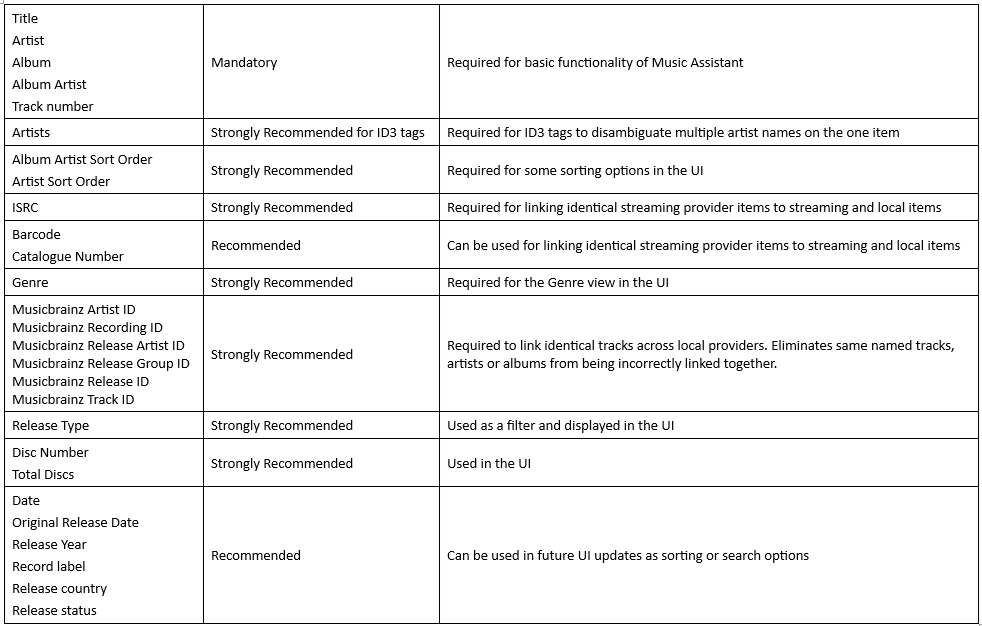
The left column corresponds to the TAG NAME shown in the MusicBrainz Picard Tag Mapping table. Refer then to the appropriate tag name for the format of the file being tagged
Manually Adjusting Tags
Section titled “Manually Adjusting Tags”WARNING
The following should be considered as advanced. Making manual changes to the tags can have undesired effects to the MA library if mistakes are made. Additionally, matching may not occur or may occur incorrectly between sources
Normally it is best to leave the Picard tags unchanged. However, some people do not agree with Musicbrainz that remasters are the same as the original recording. To separate these out the tags can be edited as follows:
- Remove MusicBrainz Release ID and Recording ID
- Keep MusicBrainz Artist ID
- Remove ISRC (as that is also used as strong identifier for tracks)
- Remove barcode (as that is also used as strong identifier for albums)
- Because there is no version specific tag, place the version between brackets in the title. For example, Great Song (Vinyl Rip)