Genres
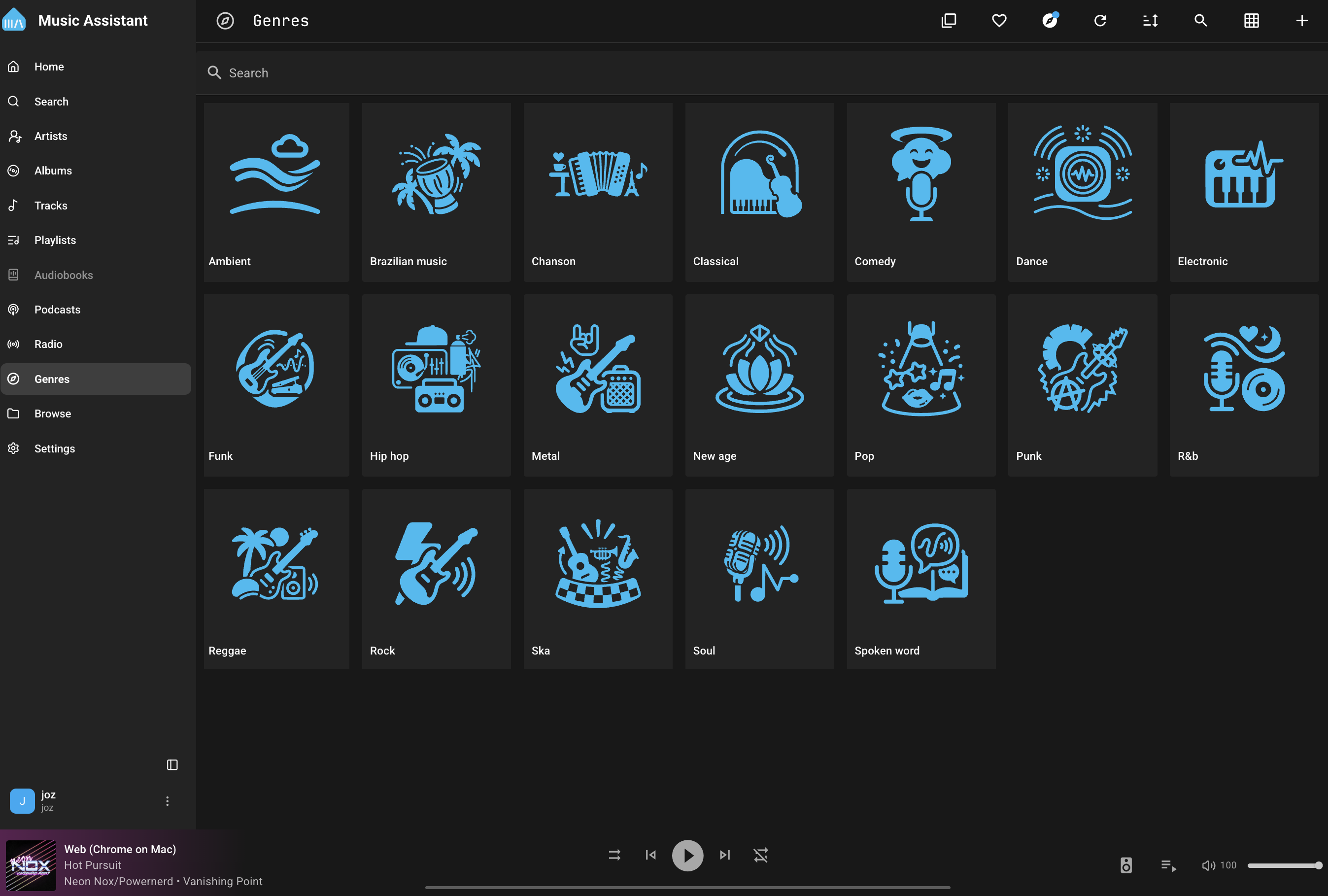
Section titled “Genres”Music Assistant includes a genre system that automatically categorises your music library. Genres are used to organise and discover music across all your providers, making it easy to browse by style, find similar music, and keep your library well-structured.
The Genre Library
Section titled “The Genre Library”The genre library is accessible from the main navigation and displays all genres in your collection. By default, only genres that have media items linked to them are shown.
Sorting
Section titled “Sorting”Genres can be sorted using the sort option in the toolbar:
- Name (ascending/descending)
- Sort Name (ascending/descending)
- Date Added (ascending/descending)
- Play Count (ascending/descending)
Filtering
Section titled “Filtering”The toolbar provides several filter options:
- Favorites Only — Show only genres marked as favorites
- Hide Empty Genres — Enabled by default. When active, genres with no linked media items are hidden from the list. Toggle this off to see all genres, including those awaiting media mappings

Search
Section titled “Search”Use the search button in the toolbar to find genres by name. Genre names are matched against both the original name and any translated display names.
Adding a Genre
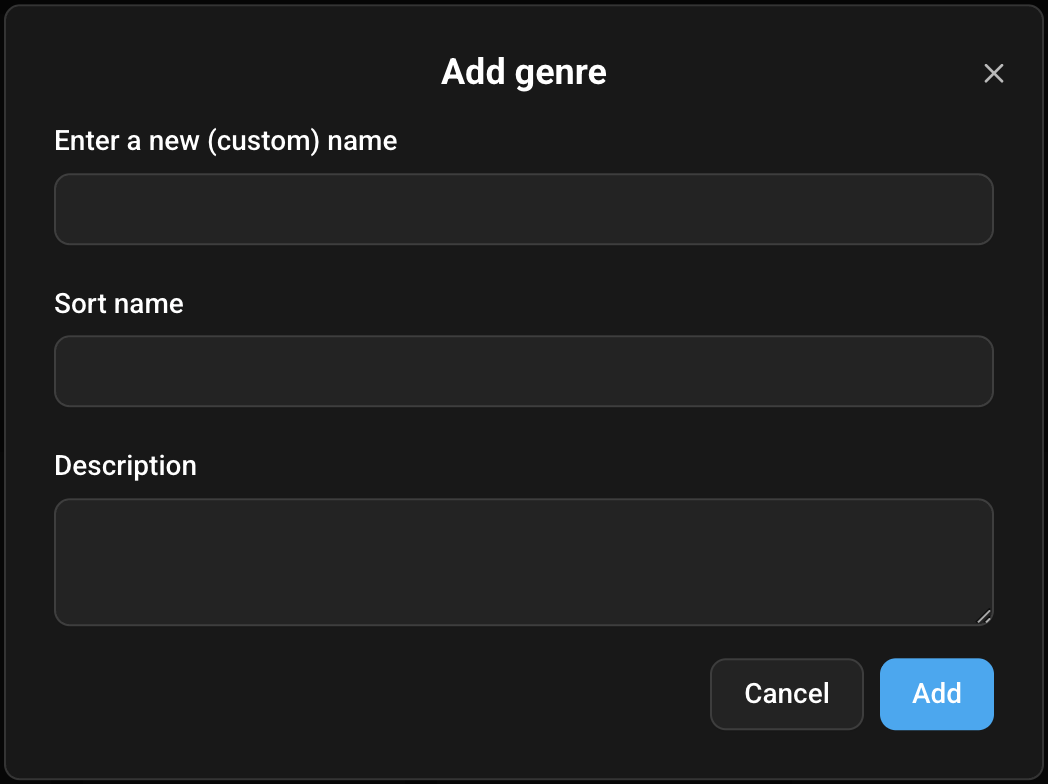
Section titled “Adding a Genre”Administrators can add new genres manually using the Add Genre option in the toolbar menu. This opens a dialog where you can provide:
- Genre name (required)
- Sort name (optional — used for custom sort ordering)
- Description (optional)
Genre Detail Page
Section titled “Genre Detail Page”Selecting a genre from the library opens its detail page. This page provides an overview of the genre and all media associated with it.
Genre Header
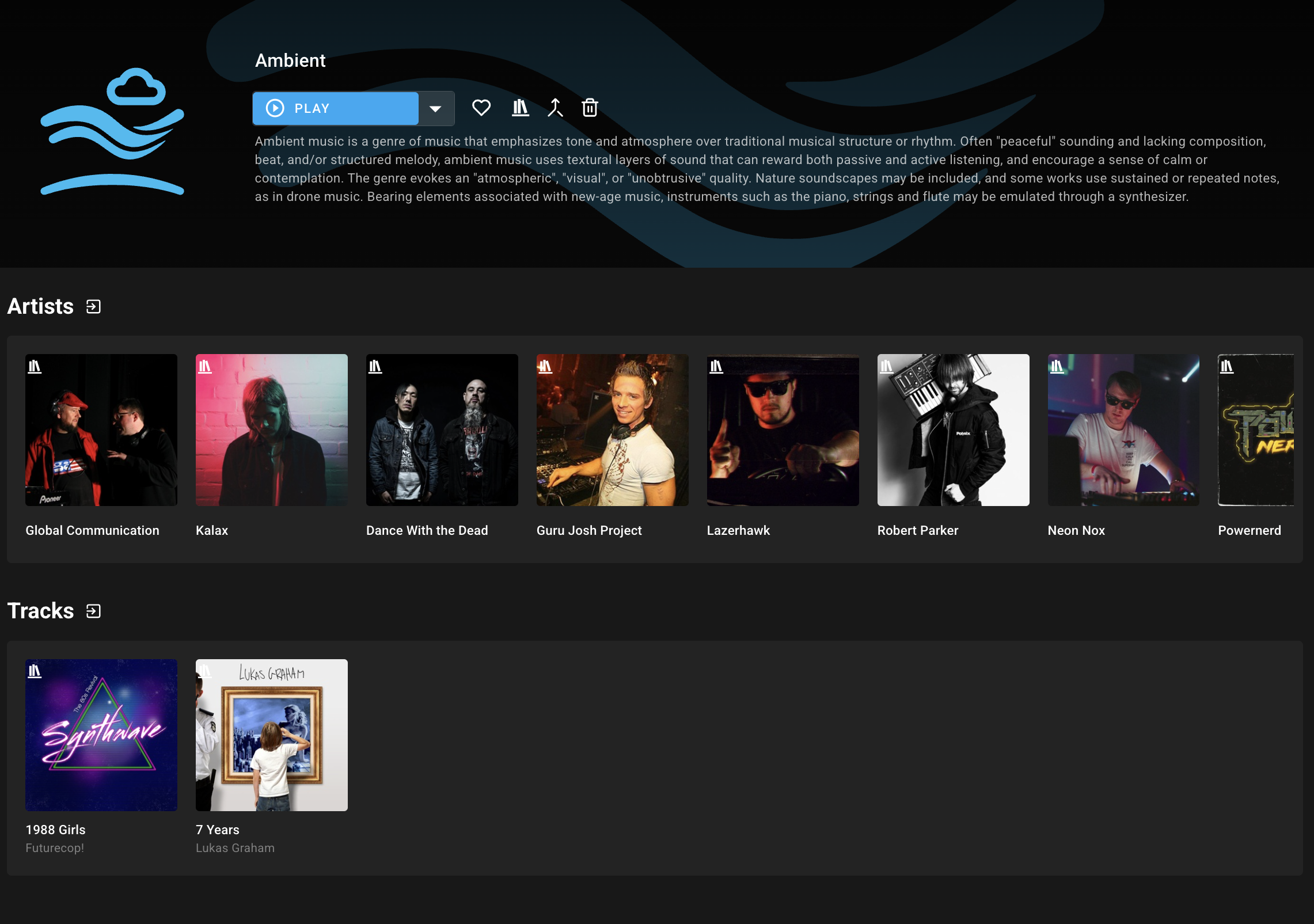
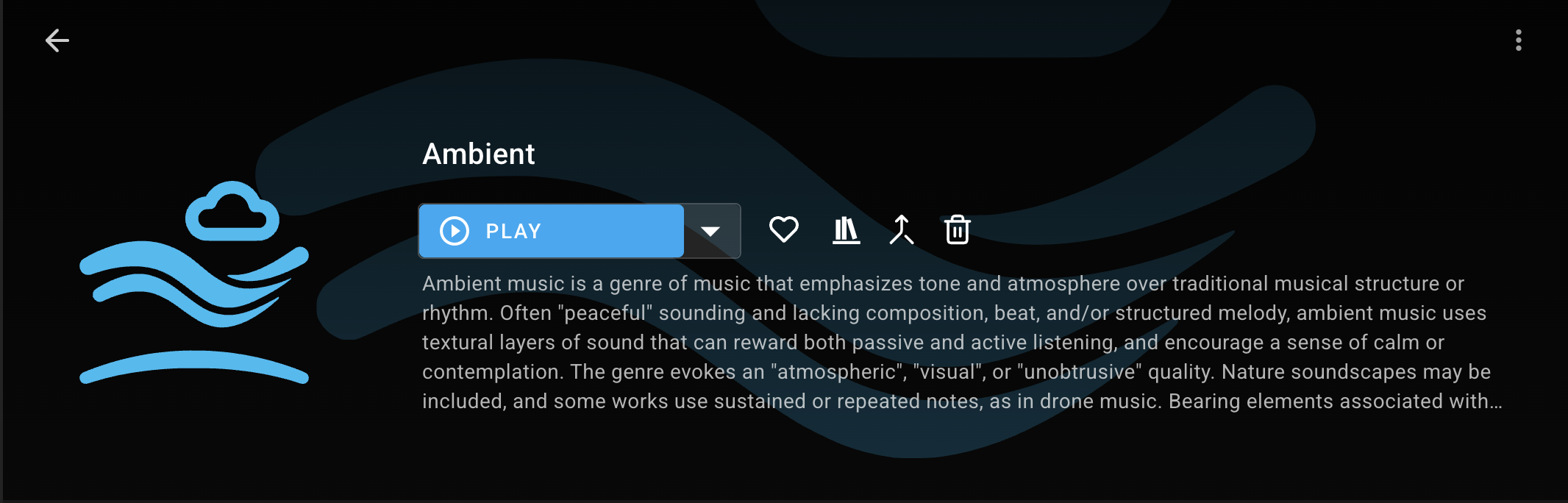
Section titled “Genre Header”The header displays:
- Genre name — Translated to the user’s language for built-in genres
- Description — Sourced from built-in genre descriptions or custom metadata. Clicking the description expands it to full length
- Favorite toggle — Mark or unmark the genre as a favorite
- Provider icon — Indicates where the genre is stored
Admin Actions
Section titled “Admin Actions”Administrators see additional action buttons in the header:
- Merge — Merge this genre into another genre (see Merging Genres)
- Delete — Delete this genre from the library (see Deleting Genres)
These actions are also available in the three-dot overflow menu.
Overview Rows
Section titled “Overview Rows”Below the header, the detail page displays media items associated with the genre, grouped by type:
- Artists
- Albums
- Tracks
- Playlists
- Radio Stations
Each row can be expanded to browse the linked items.
Genre Aliases
Section titled “Genre Aliases”Administrators can manage genre aliases from the detail page. Aliases allow multiple names to resolve to the same genre, which is useful when different providers use different names for the same style of music.
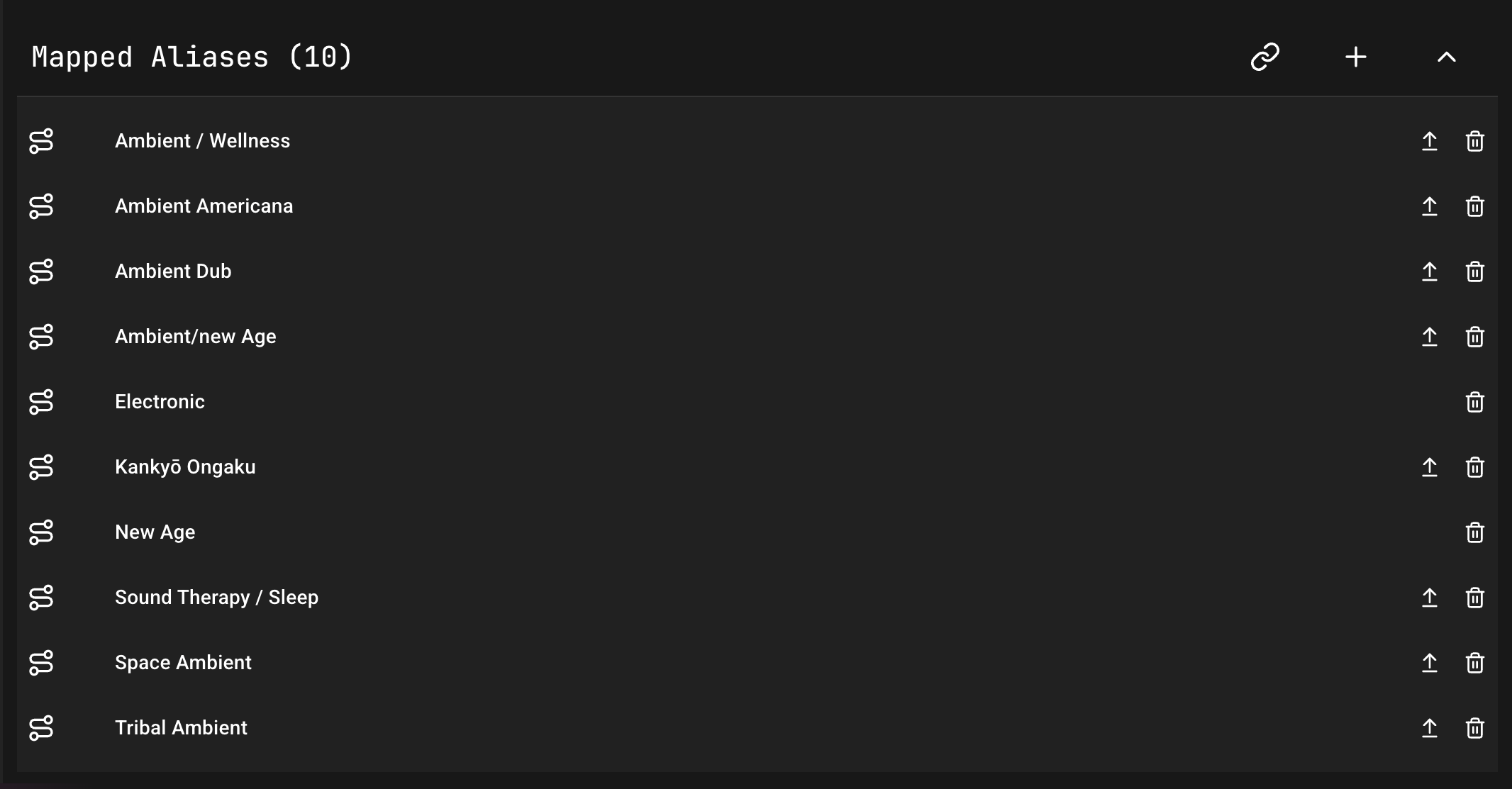
The alias manager supports:
- Add Alias — Create a new alias for this genre
- Link Alias — Search for and link an existing alias from another genre
- Promote Alias — Convert an alias into its own standalone genre
- Remove Alias — Unlink an alias from this genre
Genre Actions
Section titled “Genre Actions”Merging Genres
Section titled “Merging Genres”Merging allows you to combine two or more genres into one. All aliases and media mappings from the source genres are transferred to the target genre, and the source genres are deleted.
To merge genres:
- Select one or more genres in the library (or open a genre’s detail page)
- Choose Merge into existing genre from the context menu or the header action
- In the dialog, search for and select the target genre
- Confirm the merge
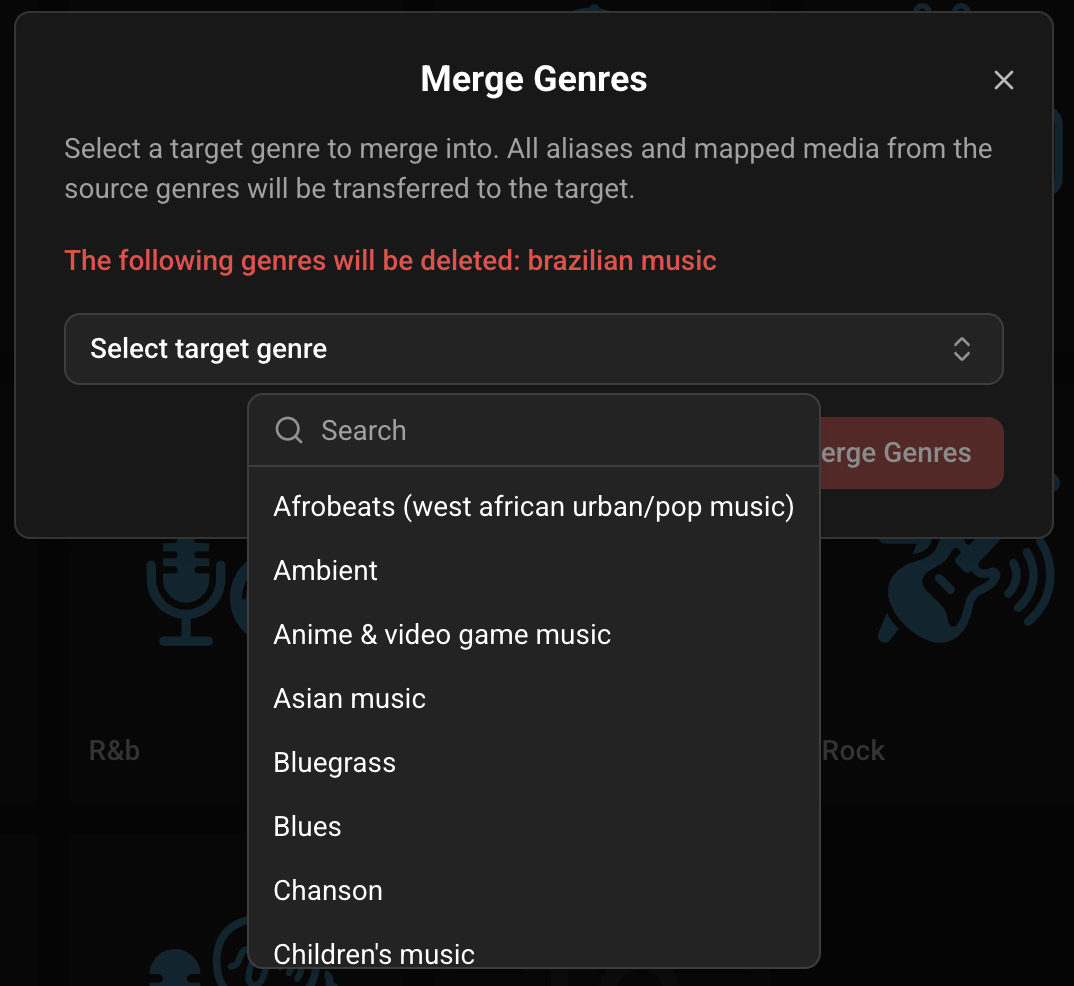
NOTE: Merging is a destructive action. The source genres will be permanently deleted. All their aliases and media mappings are transferred to the target.
Deleting Genres
Section titled “Deleting Genres”Administrators can delete genres from the library. Deleting a genre removes it and all its associated aliases and media mappings.
To delete genres:
- Select one or more genres in the library, or open a genre’s detail page
- Choose Delete genre from the context menu or the header action
- Confirm the deletion in the two-step confirmation dialog
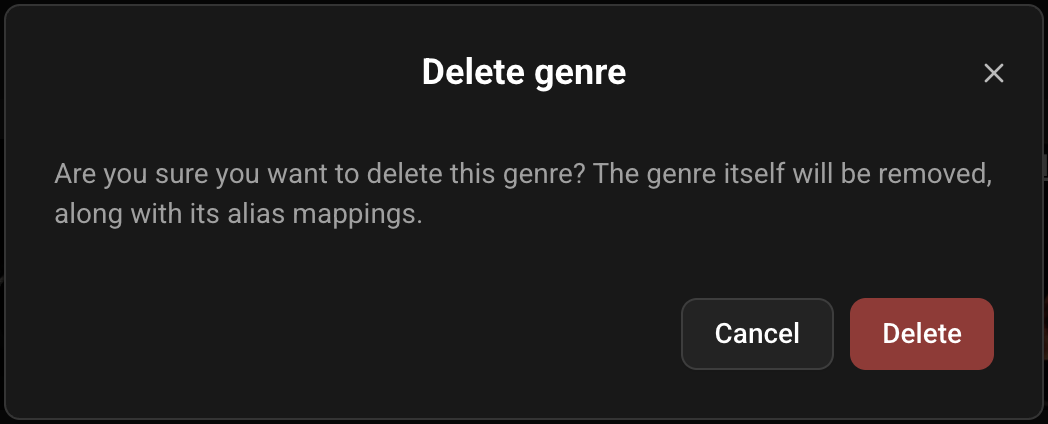
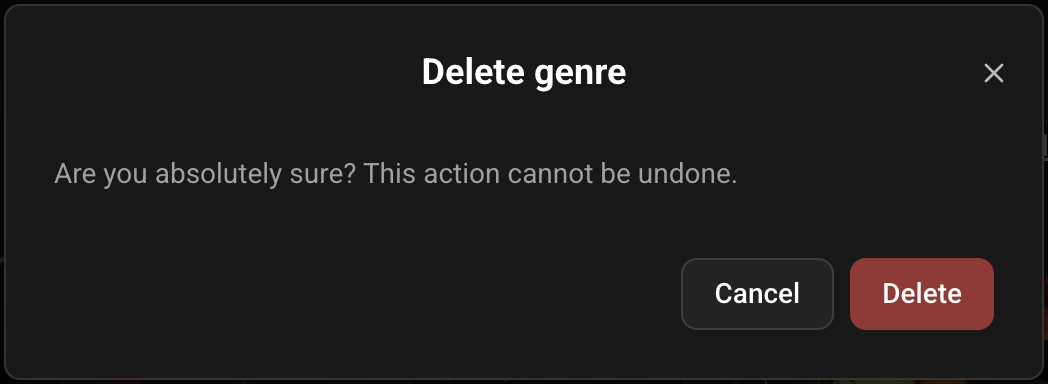
CAUTION: Deleting a genre is permanent and cannot be undone.
Linking Media Items to a Genre
Section titled “Linking Media Items to a Genre”You can manually link library media items (artists, albums, tracks, playlists, radio stations) to a genre. This is useful when automatic genre detection has not assigned the correct genres, or when you want to create custom genre groupings.
To link items to a genre:
- Right-click a media item (or select multiple items and open the actions menu)
- Choose Link to genre
- In the dialog, search for and select the target genre
- Confirm the link
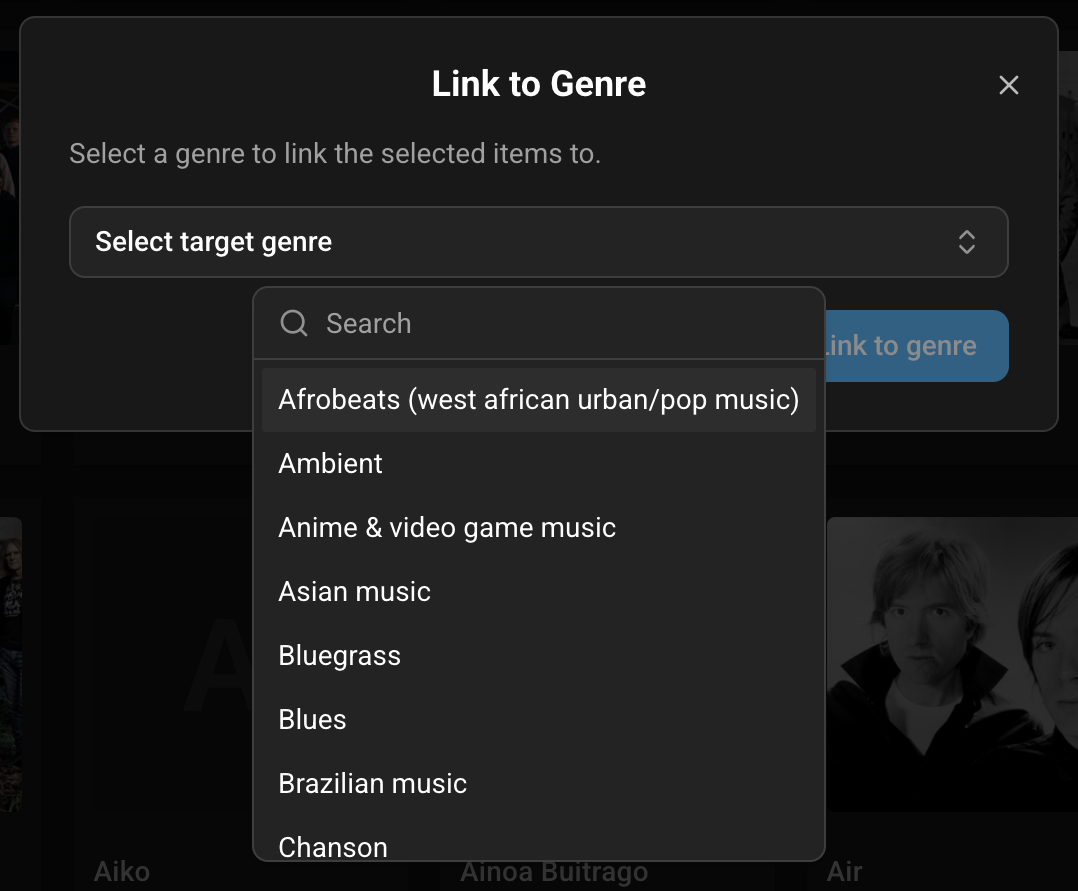
NOTE: The link to genre option is only available for items that are in your library. Items from external providers that have not been added to the library cannot be linked.
Genres on Media Items
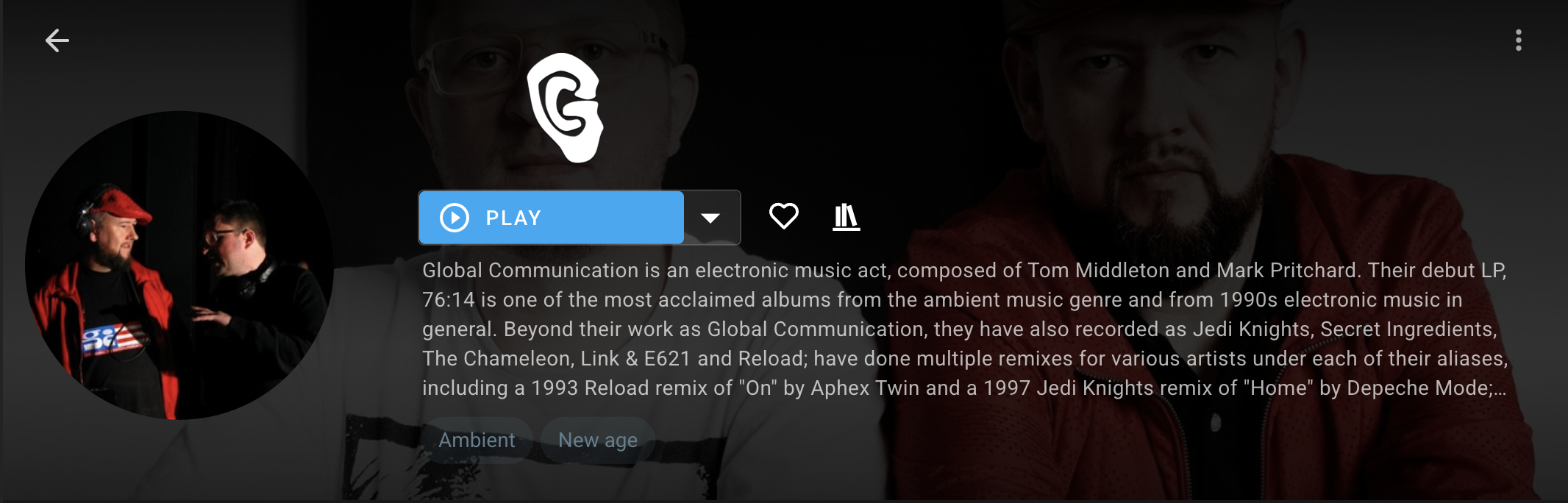
Section titled “Genres on Media Items”When viewing an artist, album, or track detail page, the genres associated with that item are displayed as clickable chips below the description. Clicking a genre chip navigates to that genre’s detail page.