Music Sources
Section titled “Music Sources”
For specific music source information refer to the relevant section.
General Notes:
- You have to add sources in order to access your music even if the media is visible to HA.
- If you remove a source a cleanup of the database will be done but it takes a little time to complete. If you still see entries from a deleted source after some time, then try a MA restart to retrigger the cleanup process.
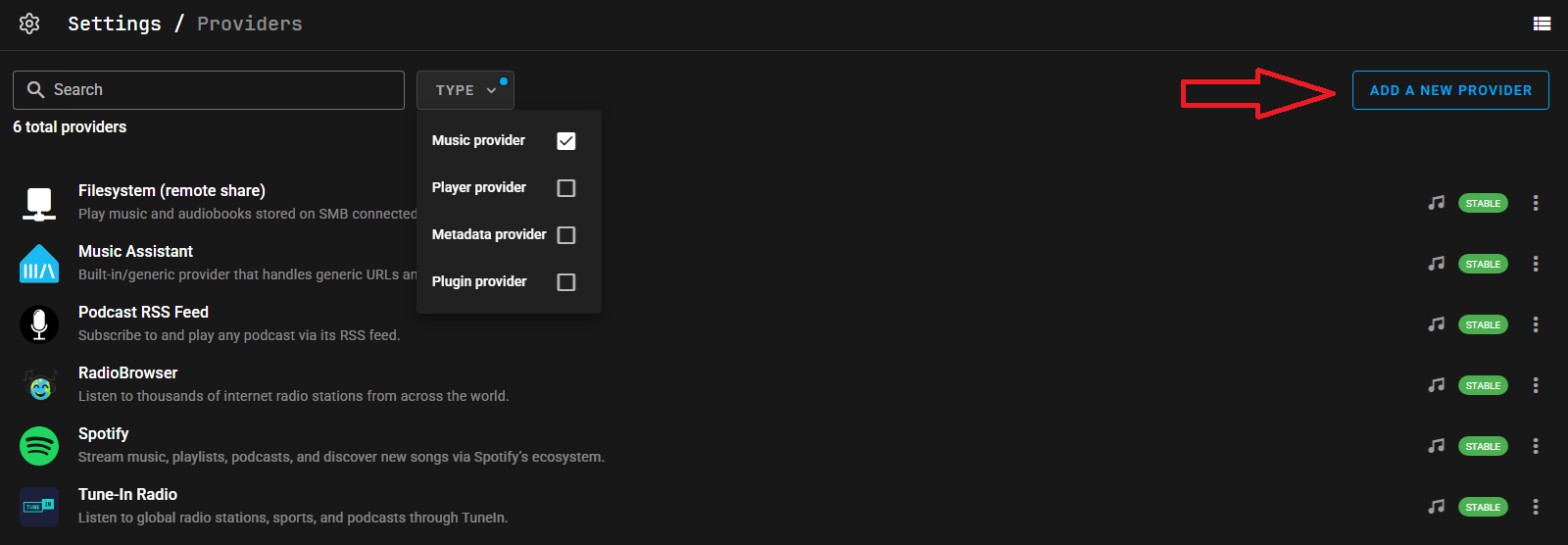
- Music sources are added by navigating to MA Settings and then MUSIC SOURCES and then clicking on ADD A MUSIC SOURCE. (In the image below the view is filtered to show just the music source - this is optional)
TIP
If a problem occurs the automatic linking process may need to be initiated again. If what appears to be identical albums or tracks are seen then navigate to the album or track and use the  icon at the top of the PROVIDER DETAILS section. This will trigger the linking process and should result in the same albums and tracks being collapsed together.
Settings
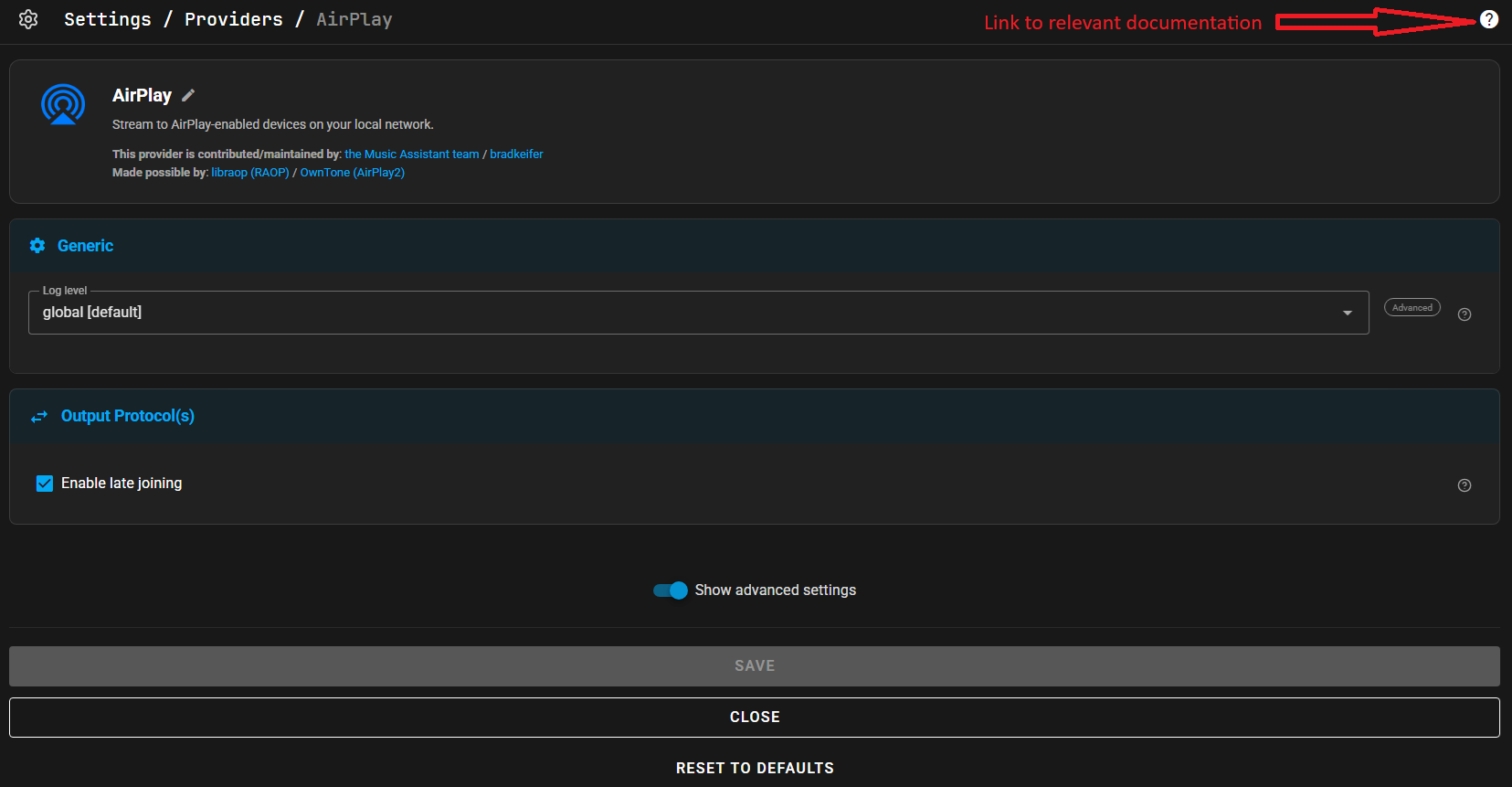
Section titled “Settings”All Music Sources have settings which can be configured. The settings page will look similar to the following. The icon in the top right is a hyperlink to the relevant page in this documentation. Specific help for a setting or configurable field is often available and is accessed by selecting this icon  . All sources can be given a custom name and disabled if necessary. The log level can be adjusted for all sources and this is found in the advanced settings. (Do not select Verbose unless asked for by a dev as it can have an adverse performance impact). See the sources pages for source specific settings.
Library Import Control
Section titled “Library Import Control”All music sources have options to control the import of media items and this is shown in the image below. The image shows a typical streaming provider on the left and a typical filessytem provider on the right. Note that if an individual track is in the source’s library (but not its associated album) and, for example, all of the import settings are set to sync then the individual track will be imported and the album will be created in the database but all of the other album tracks will not be added. This behaviour can be changed by using the Import album tracks toggle.
Control of the synchronisation timing between the provider and MA is done in the Background Tasks view in MA SETTINGS >> SYSTEM.
There is a setting which controls whether additions to the MA library are also made to the source library. For clarity, adding an item to the MA library will only be reflected in the originating source of the item. So, for example, if you had the Deezer and Spotify sources installed and you searched for an artist you will likely see that artist listed twice, once from each source. If you add the artist to the MA library and you have sync back enabled, then the artist will only be added to the source that was associated with item selected. The list view is required to see the source’s icons.
Lastly, depending on sources installed, there may be additional sync related options at the bottom of the section. Refer to the individual source settings for more information.
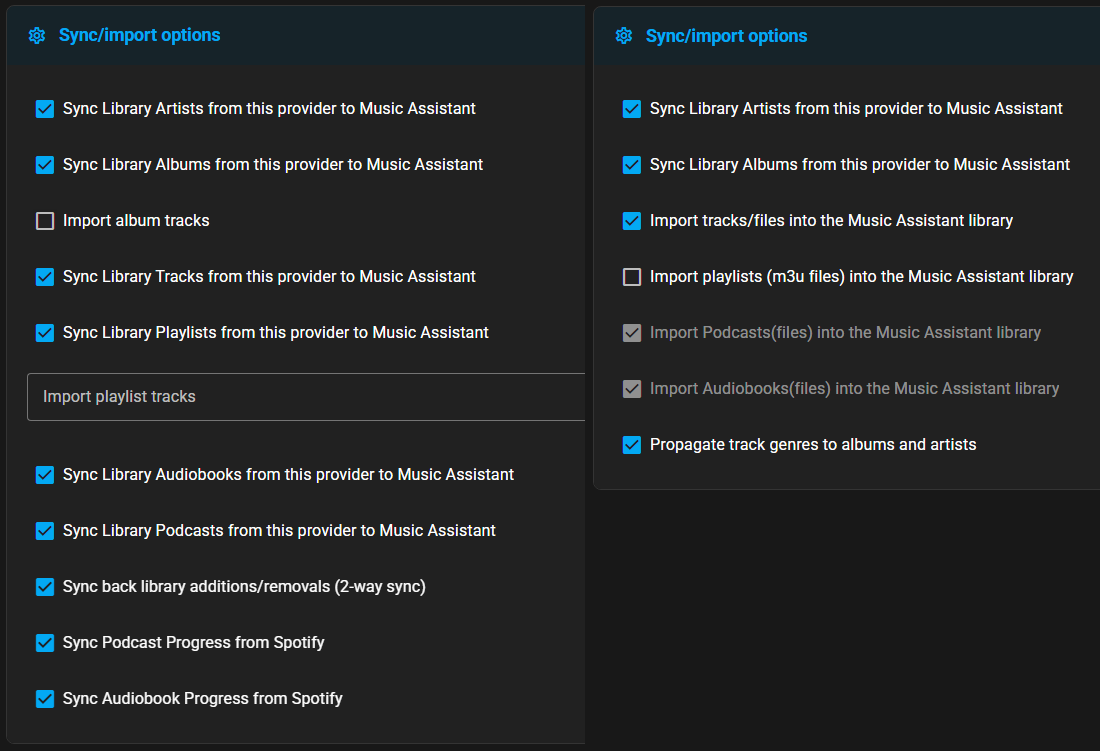
- Sync Library Artists/Albums/Tracks/Playlists/Audiobooks/Podcasts from this source to Music Assistant. Whether to synchronize all artists/albums/tracks/playlists/audiobooks/podcasts from the local source.
- Import album tracks. By default, adding albums to the Music Assistant library imports only the album entry rather than the associated tracks. This approach allows for the manual selection of specific tracks to include. To override this behavior, this configuration option can be enabled. Users should note that some streaming sources may already automate this process by adding all tracks to their favorites by default.
- Import playlist tracks. By default, importing a playlist into Music Assistant adds only the playlist itself to the library. This allows the playlist to be streamed and individual tracks can be added manually as desired. This configuration option overrides that behavior for specific playlists by importing all associated tracks. Entries can be made using either the case-sensitive playlist name or the playlist URI.
- Sync back library additions/removals (2-way sync). This setting determines the behavior when an item is manually added to or removed from the Music Assistant library. Enabling this option ensures that these actions are synchronized back to the original source. Without synchronization, items removed from the library may reappear during the next automatic sync if they remain present on the source’s side.
- Sync Podcast Progress from (source). Automatically sync episode played status from the source to Music Assistant. Episodes marked as played in the source will be marked as played in MA. Only enable this if you use both the the source’s app and Music Assistant for podcast playback.
- Sync Audiobook Progress from (source). Automatically sync audiobook progress from the source to Music Assistant. Progress from the source’s app will sync to MA when audiobooks are accessed. Only enable this if you use both the the source’s app and Music Assistant for audiobook playback.
- Propagate track genres to albums and artists. As the file system has no way to attach genres to the albums and artists this setting will take all genres found in an album or artist’s tracks and attach them to the album or artist
Information for other options not listed above is available in the MA UI.
Summary
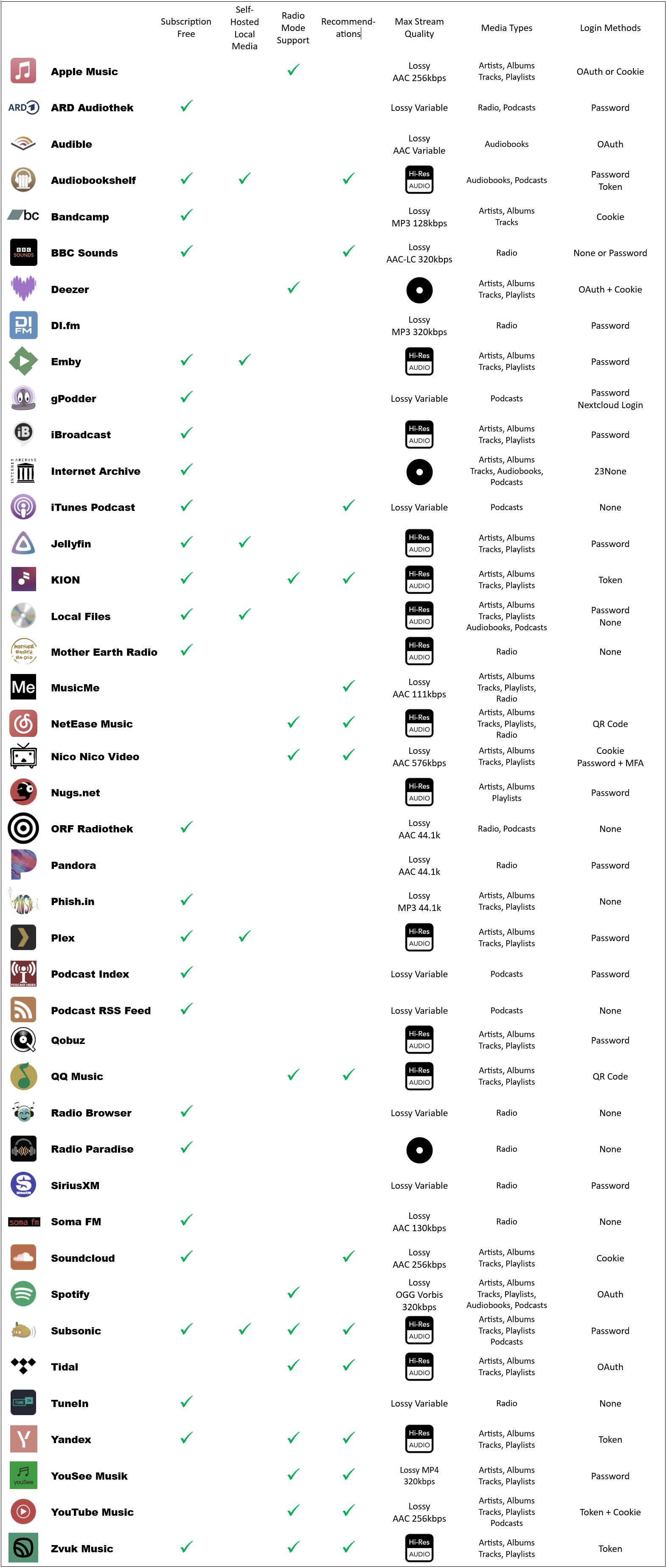
Section titled “Summary”The table below provides an at-a-glance summary of all of the music sources. Green ticks indicate a desirable quality or function is available.
Stream quality is indicated as either Hi-Res, CD quality or lossy with the codec and bitrate where available.
The most user friendly login method is a password, followed by OAuth and then the cookie method is least desirable.