

User Interface
Section titled “User Interface”Main Menu
Section titled “Main Menu”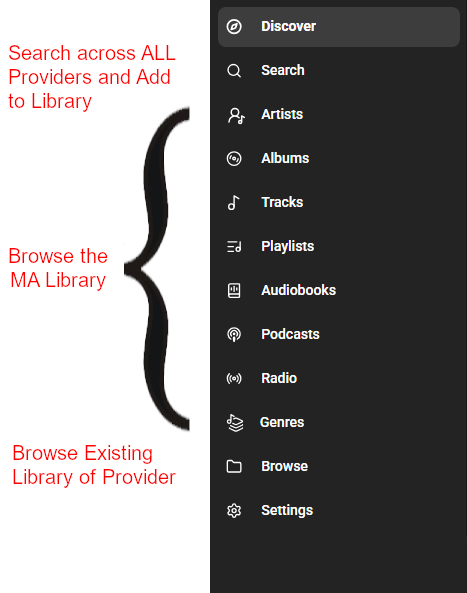
This menu’s appearance can be configured in Settings / User Interface. On a desktop, it can be placed vertically on the left (as shown) or horizontally at the bottom (by selecting “Force mobile layout”). In the mobile layout, Menu, Discover, Search, and Players will be seen. The enabled menu items (Views) are displayed in the order they were selected in the User Interface settings. Any of the views can be hidden. If the Settings view is hidden from the menu it can be accessed by navigating to YOUR_MA_IP_ADDRESS:8095/#/settings
Global Search
Section titled “Global Search”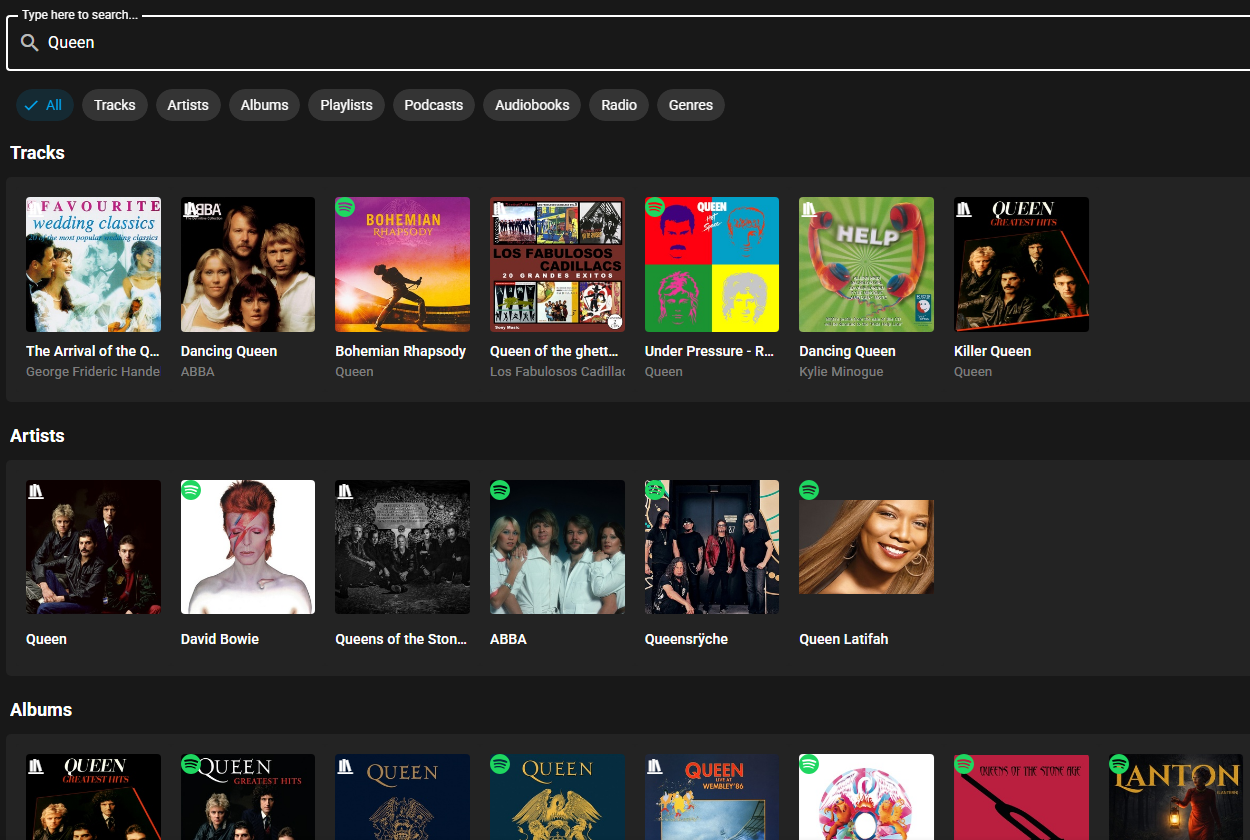
Searches can be done via any combination of words or partial words and also via a URL to a source such as https://open.spotify.com/album/0BwWUstDMUbgq2NYONRqlu
Initially, the view defaults to ALL which is limited to a maximum of 8 items in the eight categories of Tracks, Artists, Albums, Playlists, Podcasts, Audiobooks, Radio, and Genres.
Selecting a specific category will then show a maximum of 50 items. Context sensitive menus are available for each. If the item desired is not found then narrow the search term or navigate to the artist and all available albums and tracks should be shown in that view (although some sources may be limited in the number of items that can be returned).
Player Bar
Section titled “Player Bar”
When playing to a group, tapping near the volume control will open a dialog to control the individual players.
The Audio Pipeline selectable label shows, via a coloured icon and two letters, the quality of the audio output (Low Quality, High Quality and Hi-Res). An orange circle and LQ indicate a lossy codec in use, a green circle and HQ indicates a lossless codec in use, and a cyan circle and HR indicates a lossless codec and High Resolution sample rate or bit depth. For groups, where the quality varies between players, the highest quality available will be indicated.
Now Playing View
Section titled “Now Playing View”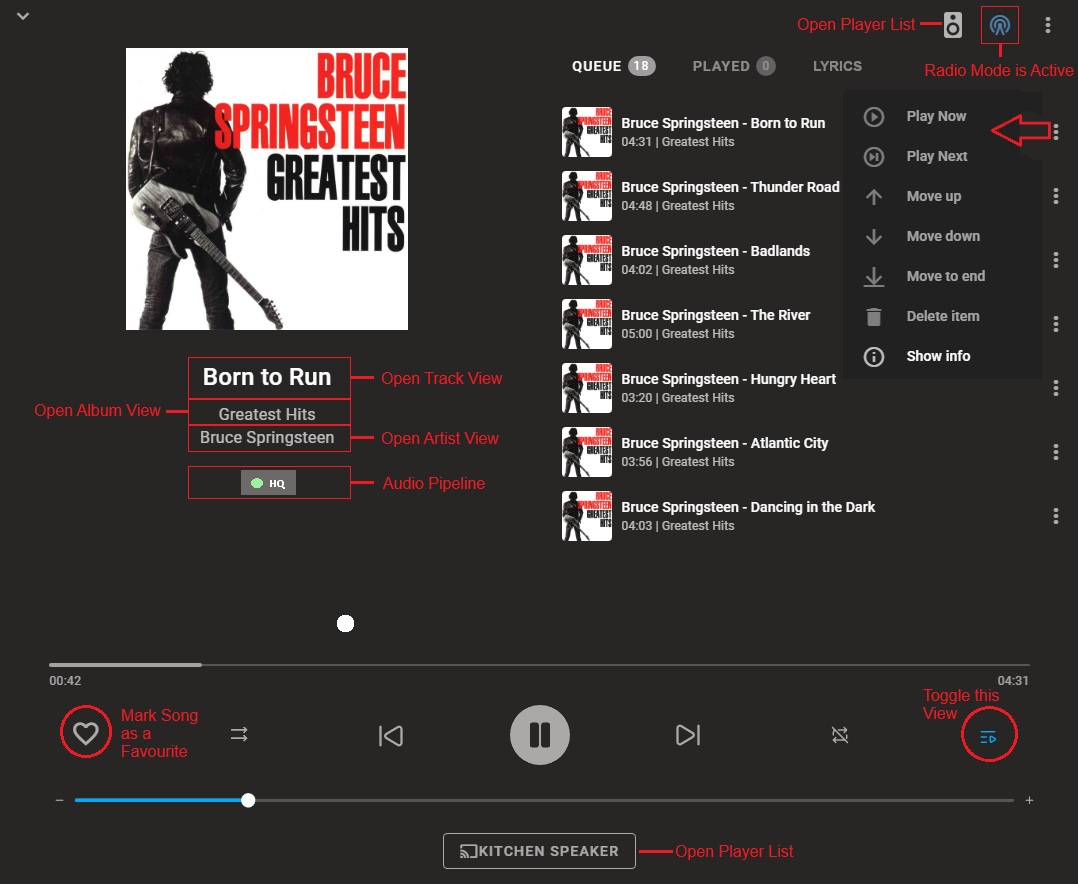
This view will change depending on screen width. With wider displays you will be able to see the track that is playing (and associated information) as well as the queue, and player selection is available at the bottom. With narrow displays you need to use the toggle in the bottom right to switch between the currently playing information and the queue, and the player selection is available via a smaller speaker icon at the top. Adjustments to the queue can be done with the ⋮ menu on the right.
The Audio Pipeline selectable label is described above in the Player Bar section.
You can also access the Now Playing view directly via URL
When the favourite icon is solid then selecting that will bring up two options - Remove from Favorites and Add to Playlist. It is possible that if the favorite status is changed from a different view after playback has commenced then the favourite status may not indicate correctly until playback of the track is restarted.
When lyrics are available for the track being played then the LYRICS selectable label will be shown. Upon selection, the queue will be replaced by the lyrics which will be in sync with the music when timing information is available. Accurate lyric selection is contingent upon the metadata providers and may not be accurate for alternate versions of a song.
Player List
Section titled “Player List”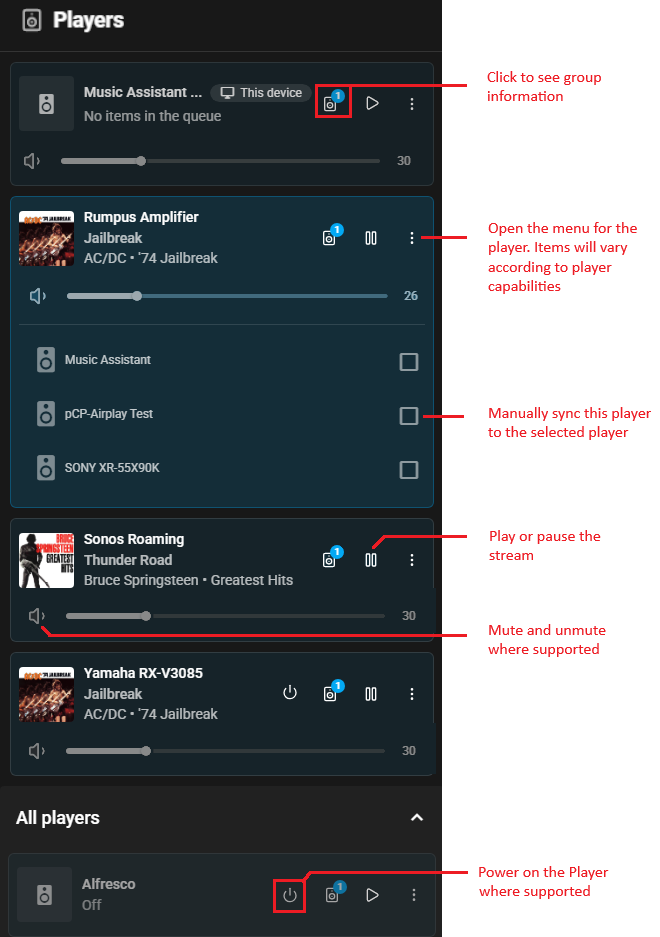
NOTE
The volume shown against a player group is the MAXIMUM of the volumes of the child players. When the group volume is changed then each player is changed by a proportionate amount such that all speakers reach 0 when the group slider hits 0 and 100 when it hits 100. The relative balance between speakers is preserved such that returning the group slider to the original value will revert each child player to their original volumes
When a player group is powered on the members of that group will disappear from the player list and individual playback to those players will not be possible. In order to playback to an individual player then either power off the group or remove the player from the group.
NOTE
The MDI icon shown against each player can be changed in the player settings.
Grouping Players
Section titled “Grouping Players”There are four ways to group players
- TEMPORARY SYNC GROUP. As shown in the Player List section players can be linked via the checkbox in the player list. Only like player types that support synced playback are allowed to be joined. These players will then play in sync. It should be noted that when players are grouped in this way only the main player holds the queue.
- SYNC GROUP. Create a (permanent) group player via the settings. In addition to playing in sync the group will also keep the queue on the group player instead of one of its child players.
- UNIVERSAL GROUP. This allows grouping of dissimilar player provider types but carefully note the potentional limitations on the linked page.
- NATIVE GROUP. Use the native functionality to group players offered by some player provider types (e.g. Google Cast)
With TEMPORARY SYNC GROUPs the number of players being streamed to can be seen due to the naming convention. In the example image below there are three players in the group.

NOTE
If an attempt is made to power on a group and a member of that group is already a member of another powered on group then an error will be shown.
NOTE
If a player is taken over by another app, MA will not have knowledge of that, and the group may no longer function correctly. Additionally, if a player of a syncgroup tries to join late (e.g. it was unpowered) it will not be synced to the group.
Play Button 
Section titled “Play Button ”The play button is used as a shortcut to play the various items in the UI. It is shown on hover for non-mobile devices or is always in view for mobile devices.
Clicking/touching the Play Button will either execute the default play action for the item or show the play menu. To ensure the user doesn’t accidentally play on the wrong player, the play menu will show:
- the first time the MA view is entered; or
- if the player is not playing (or paused)
NOTE
If there is ever uncertainty as to whether the item will immediately start playing use a right click or long press to bring up the menu.
Multi Select 
Section titled “Multi Select ”When the Multi Select icon is selected the Select All icon will appear.
Clicking/touching the Select All icon will select all of the items in the view (or section of the view as appropiate). For large lists a confirmation dialog will appear as selecting thousands of items can cause unresponsivness depending on the resources of the host.
CTRL-A will also select all items unless the search box is in view in which case it will select all text in that box. Also CTRL-A won’t work on views that have multiple sections (e.g. the artist view has albums and tracks) so the Multi Select icon must be used in that case.
Track Menu
Section titled “Track Menu”In any of the following views, Right click or long press on a track to get the following menus
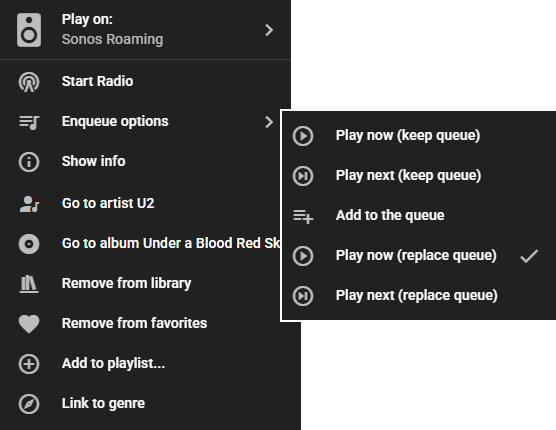
The START RADIO option will only be seen if there is a provider that supports it. Start Radio populates the queue with tracks based on the selected track. The tracks are selected by the provider not MA.
View - Discover
Section titled “View - Discover”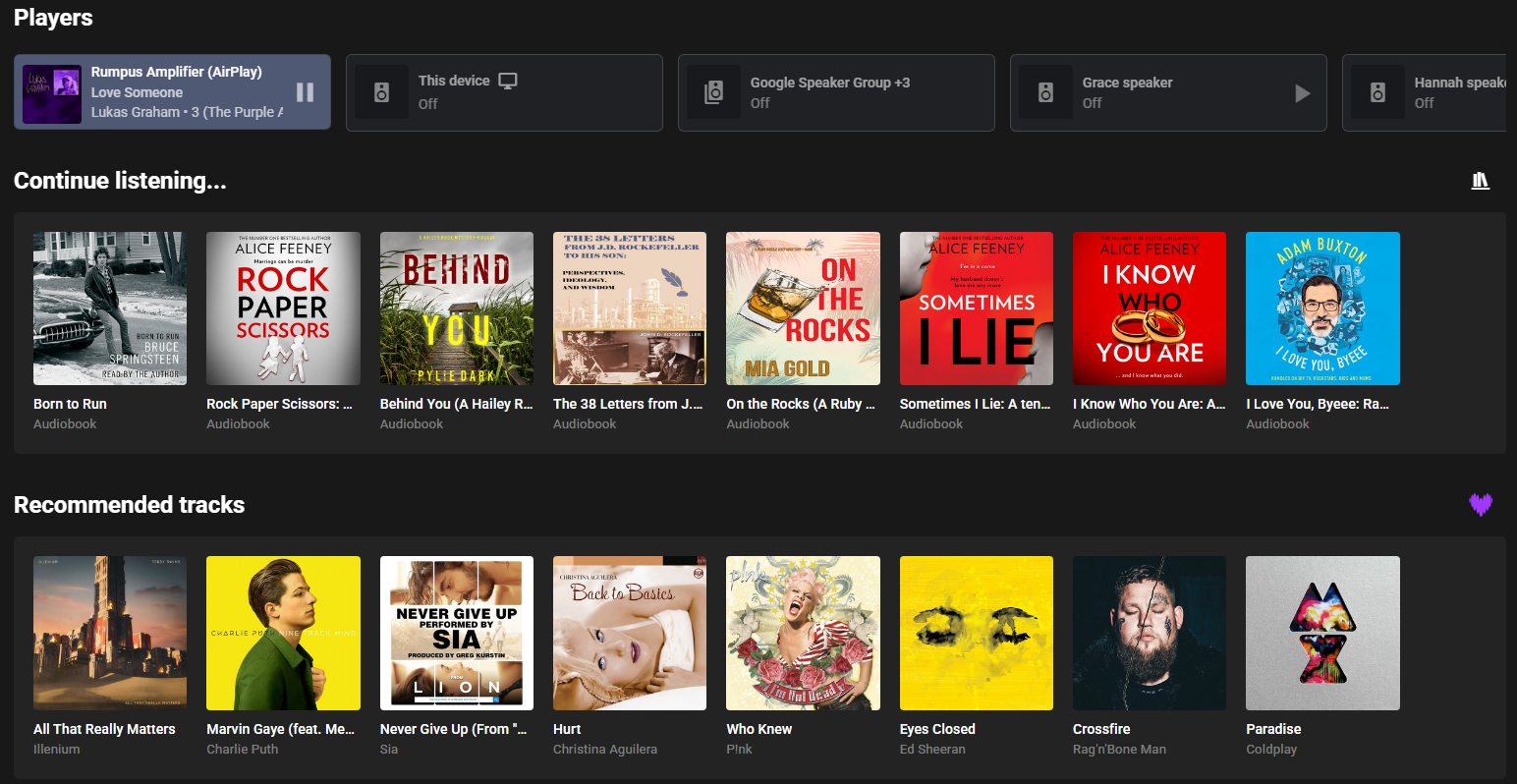
The Discover View provides quick access to all of the different media types. Also shown are RECOMMENDATIONS from the providers which support this feature (e.g. Tidal). Review the specific music source pages to identify which sources supports this.
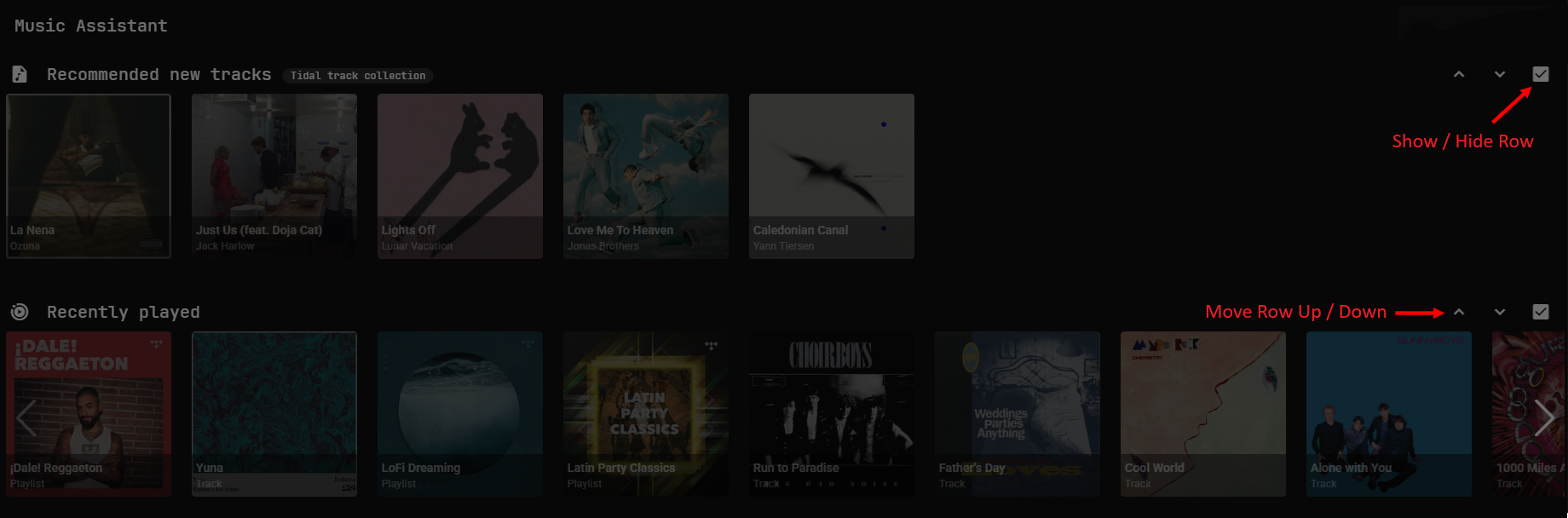
The view is fully configurable. Select the user name in the navigation menu and then EDIT HOME SCREEN. There is then the ability to show or hide each row and adjust the order. Return to the menu to disable the edit mode.
View - Artist / Album / Track
Section titled “View - Artist / Album / Track”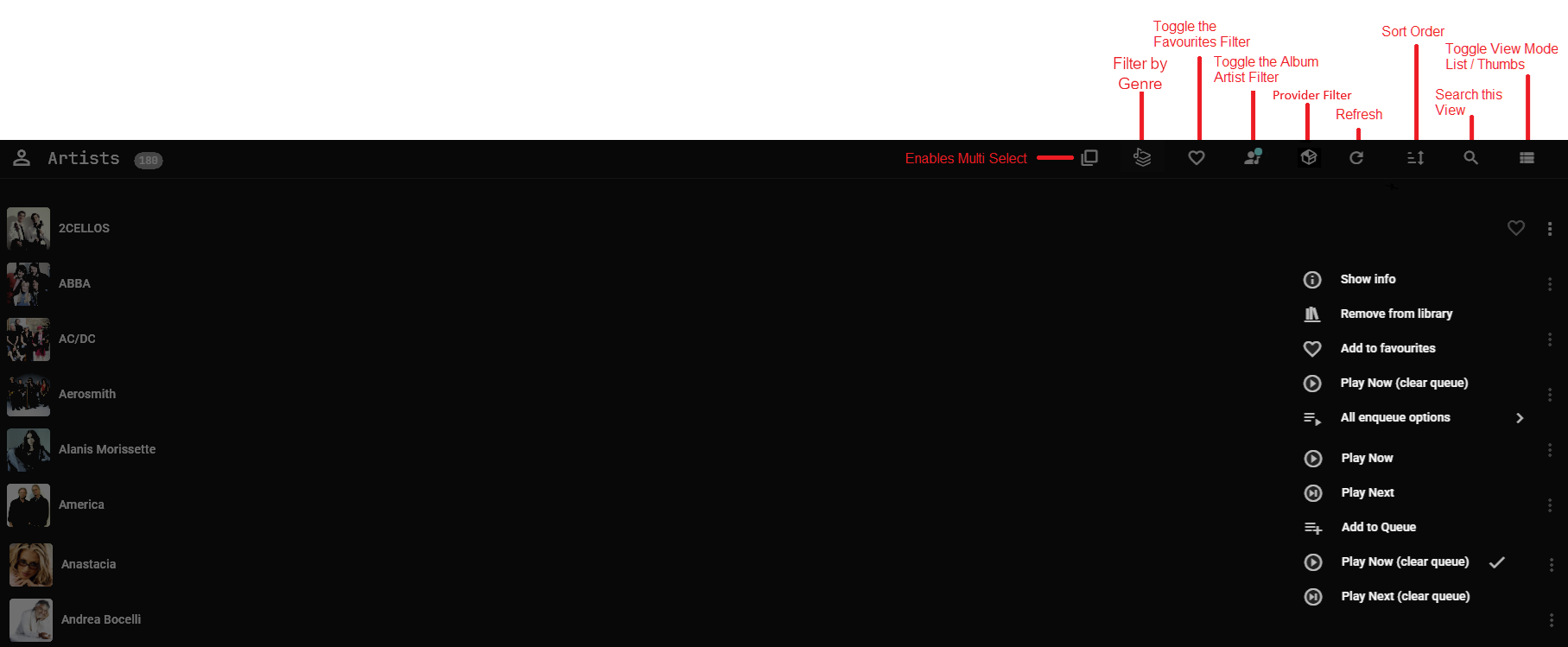
Album, Track and Playlist Views look similar to the above except there is no album artist filter icon and the track view has an ADD VIA URL option. Playlists have a Create new playlist on" icon as well as a Import playlist` icon which allows the manual importation of plain text M3U and M3U8 playlist files.
A blue dot on any icon (e.g. search icon  )
indicates that the viewed results are subject to filtering.
)
indicates that the viewed results are subject to filtering.
The provider filter icon will only show when there are two or more music sources installed that support the media type being viewed. Multiple providers can be selected as part of the filter.
Items in all views can be “right clicked” or “long pressed” to bring up an extensive menu of options which is the same as that accessed by the ⋮ menu on the right. In the image above the complete list of possibilities is shown and this will vary slightly depending on the current view.
Multiple selections of albums / artists / tracks is possible by clicking the multi-select icon. Once one or more items are selected then clicking on the “ACTIONS” at the bottom

will bring up this menu
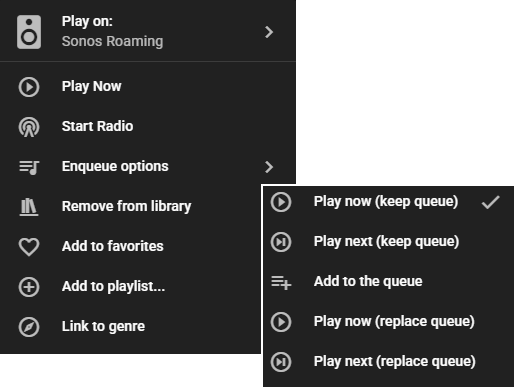
The behaviour described above will work on any view where you see the “x item(s) selected” text.
View - Individual Artist
Section titled “View - Individual Artist”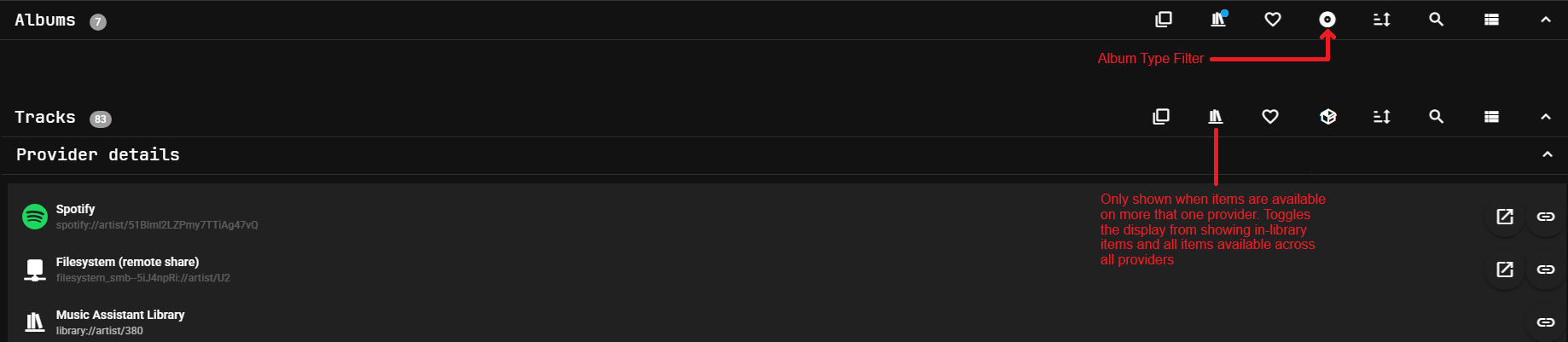
The tracks and albums sections are collapsible. The view above shows them both collapsed. The tracks section shows ALL tracks that are in the library or that are available across all of the providers. A blue dot on the library icon  indicates that the viewed results are filtered to only show items that are in the library. To see what albums any given track is on you can either sort alphabetically or click on one and use the context menu and SHOW INFO.
The album section has an additional filter option. You can choose to filter by or in any combination of ALBUM, SINGLE, COMPILATION, EP, LIVE, SOUNDTRACK or UNKNOWN album types.
Expanding the IMAGES section (only visible to users with the Administrators role) allows for the selection of Thumb, Fanart or Logo. The other types shown are not used in the UI at this time. If there are no or limited images shown or the Images section is missing then go to the ⋮ menu in the top right of the view and select UPDATE METADATA. Right click on an image to make it the primary to be used. (Similar functionality is also available in the album view for Thumb)
Provider Details
Section titled “Provider Details”The PROVIDER DETAILS section (read only for other than users with the Administrator role) shows what providers are linked to the artist (albums and tracks have a similar section) across the available providers. It is normal to have multiple entries here if an artist has aliases or there are variant spellings, use of punctuation etc. Thus there may be many entries showing matching links within a provider and across providers. Cross linking across and within providers occurs when the item is added to the MA library and can be triggered by using the  icon. Adding a new provider does not trigger linking across existing library items.
The creation of links within the MA library to other identical items in the MA library (within or across providers) can occur when an item is added to the MA library. Links will be made automatically if internal matching logic is satisfied.
Incorrect mappings can be removed via the delete option in the ⋮ menu. For local files incorrect links may occur if the source file isn’t comprehensively tagged.
The ID shown against the streaming provider may be used in automations and scripts and is obtainable by pressing the ⋮ icon on the right. Also in this menu, for streaming providers, is an external link which opens the page for the item on the source provider.
View - Individual Track
Section titled “View - Individual Track”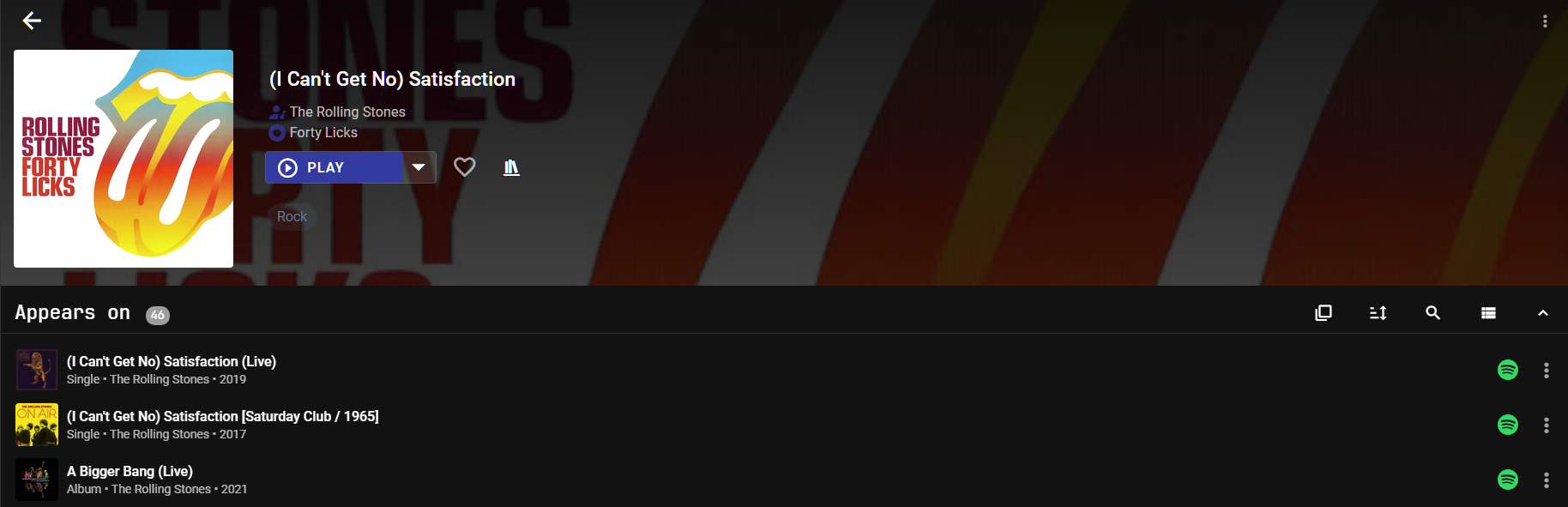
NOTE
The PROVIDER DETAILS section in this view also has the functionality to play a short sample of the track on the local device. Any indicated sample rate and bit depth are as reported by the provider and may differ during playback if transcoding is done before the audio data reaches MA.
View - Radio
Section titled “View - Radio”The Radio view shows streaming radio stations that are available in the MA library (this is not the Radio Mode of the Player Queue). Stations can be added to the library in the following ways:
-
Add item from URL - A URL for a streaming radio station (e.g. self-hosted Icecast stations) can be added to the library by selecting
Add item from URLfrom the menu in the top right of the Radio view. When filtering by provider, they will be shown as provided by “Music Assistant”. -
Music providers that support Radio items will have those items shown here when they are added to the library
Music sources that support Radio items will have those items shown here when they are added to the library
View - Browse
Section titled “View - Browse”Entering the Browse view will present a list of the installed Music Sources that have a browse capability. Selecting one of those will show a relevant list of the items from that source that can be browsed.
When viewing a source which has a native library then only what is in that library will be seen. For the local sources and other sources that do not have a native library, you will see all items available from the source. For local sources, if a folder is visited that is not already in the MA Library it will be automatically added even if it has been previously removed.
CAUTION
Be careful once browsing within the source as selecting PLAY on a folder will play everything in that folder and all sub-folders. Attempting to play thousands of tracks may consume an excessive amount of system resources on the host and cause MA to crash or become unresponsive.